Morpheus can record your workouts in multiple ways so you can train in the way that works best for you.
Whether you want to train with your phone, without your phone, or using a Garmin device, Morpheus ensures that your workouts are captured accurately and included in your recovery and training data.
This lesson focuses on how to record workouts without using the Morpheus app in real time.
“Offline Mode” Methods for Recording Workouts in Morpheus
There are two supported ways to get a workout into Morpheus when you’re not recording the workout in real time with the Morpheus app on your phone.
Training with the M7 Without the Using Morpheus App
Importing Workouts from Garmin Connect
Any workout you want included in Morpheus (that you did not use the Morpheus app in real time to record) must be done using one of these two methods.
At this time, Morpheus does not import workouts from other platforms (ie Apple Health, Strava, etc).
Option 1: Training with the M7 Without Using the Morpheus App
This method is ideal when using your phone during training is impractical.
The M7 records workouts automatically using its internal memory.
Workouts must be at least 10 minutes to be able to be synced to the app afterward.
Starting an M7 Workout
While wearing the chest strap, snap the M7 onto it as soon as you are ready to start recording your workout.
Recording begins automatically once heart rate is detected. Do NOT start a workout in the Morpheus app on your phone.
If you wear the M7 before your workout begins, you’ll be able to trim “junk time” later.
Viewing Heart Rate During the Workout (Optional)
You can:
Train without viewing heart rate, or
Pair the M7 to any ANT+ or Bluetooth-compatible device, such as:
Garmin watches
Apple Watch
Polar watches
Bike computers
Supported cardio equipment
Note: If you need to connect your M7 to more than one device simultaneously, it can connect via ANT+ and Bluetooth or can connect to two devices via Bluetooth.
Ending an M7 Workout
Remove the transmitter from the strap
After 5–10 seconds, the workout ends automatically
Important notes:
Workouts must be at least 10 minutes to be saved
For back-to-back workouts:
Remove the M7 for at least 5 minutes
Reattach to begin a new workout
Note: the M7 is recording the entire time you’re wearing it. If you do two different, yet consecutive, workouts without removing the M7 as noted above, when you sync the M7 to the app, this will just be one long uninterrupted workout that cannot be split into two workouts.
Syncing Workouts from M7 to the Morpheus App
Ideally, you should sync and import a workout to the Morpheus app on the same day that you completed the workout. This is not required, but this will ensure that Morpheus has your workout data recorded and thus can be included in the calculation of recovery score on the following day.
You must be wearing the M7 so that it is powered on
Open the Morpheus app and tap the download icon in the upper right corner of the home screen. Or tap on Menu and then tap on Import Workout
Select Morpheus HRM.
Choose your M7 and tap Connect
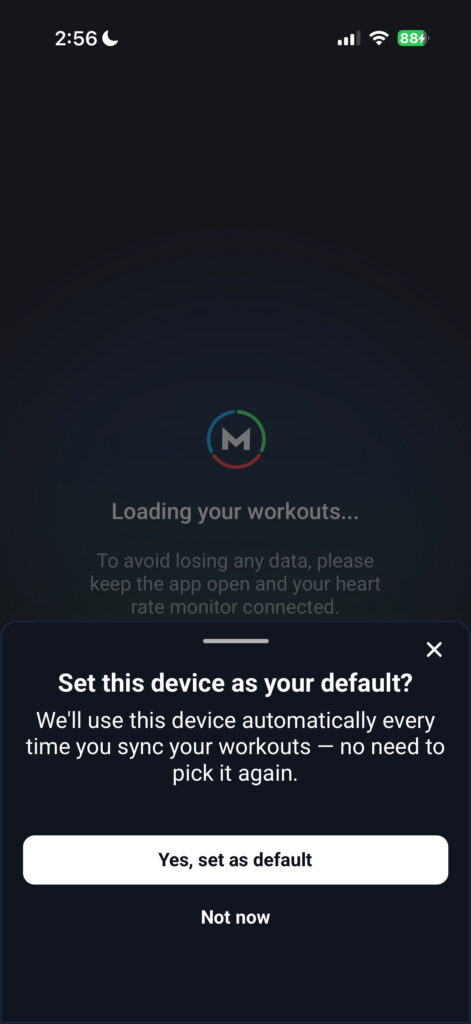
You will be asked if you want to make this M7 your default device for syncing. Choosing Yes, set as default will allow you to never have to choose your M7 from the sync list; the app will just automatically attempt to connect to it when you choose Morpheus HRM for syncing.
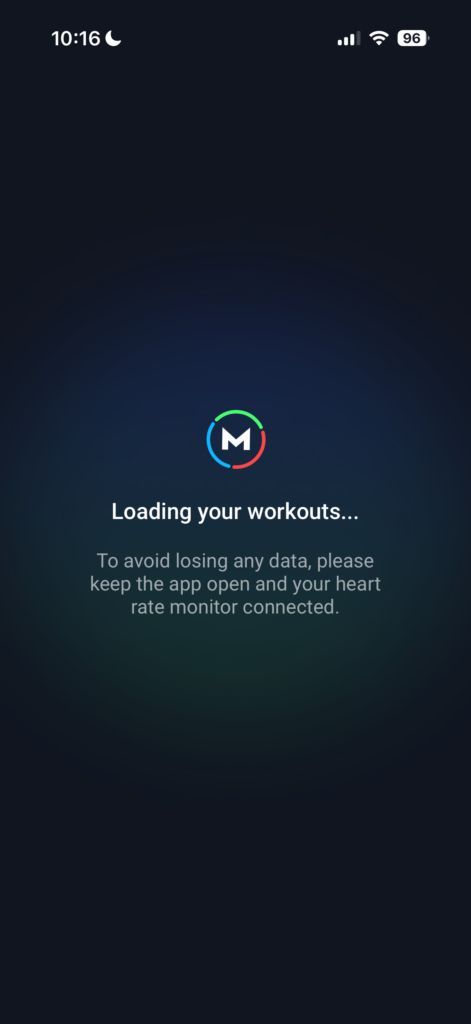
Depending on how many saved workouts you have on your M7 since the last time you completed this sync process, the process of sending the workout data from the M7 to the app could be very fast or somewhat slow.
During this time it is very important to remain on the “Loading your workouts…“screen and keep your M7 powered on.
After this process has finished, you’ll see a list of workouts. Newly synced workouts will appear at the top of the list.
Any workout that you had previously left on the list (not imported nor deleted) will also show here.
If you already have workouts in your sync list and you need to add new workouts to the list, tap on Add at the upper right and then choose Morpheus HRM.
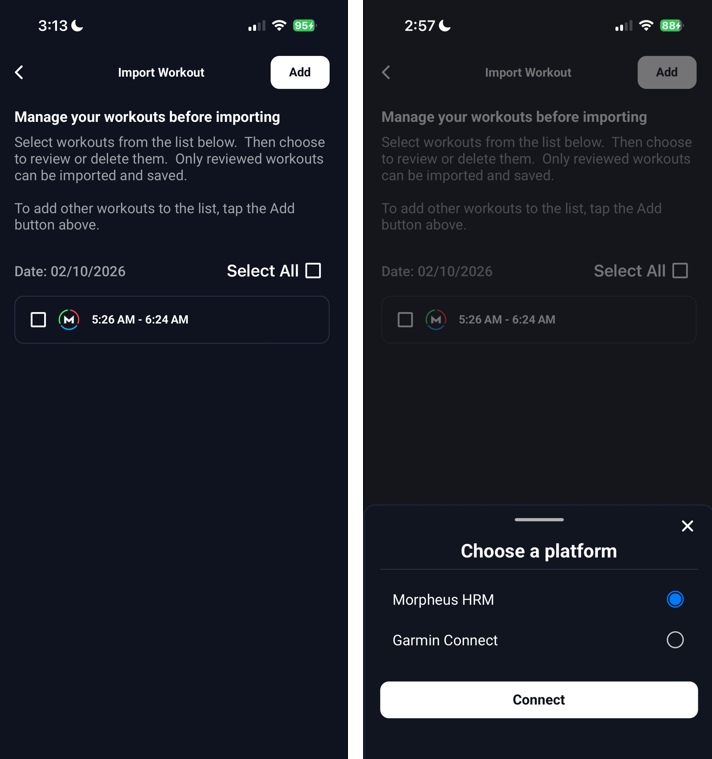
Next, select any workout from the list that you need to review and fully import into the app.
Any workout that you do not select will remain in the list so that you can Review or Delete it later.
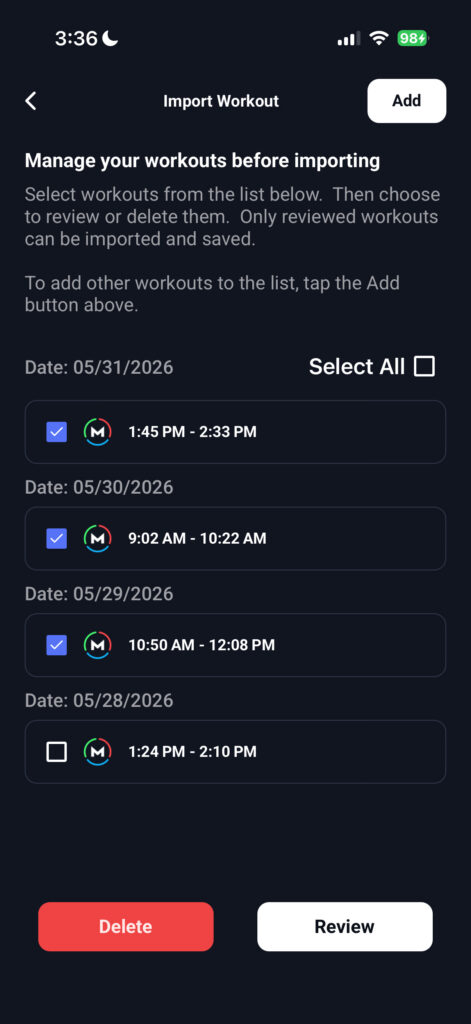
After selecting one or more workouts that you need to fully import into the app, tap Review.
Any workout that has already been recorded live with the app, you can select from the list and then tap Delete.
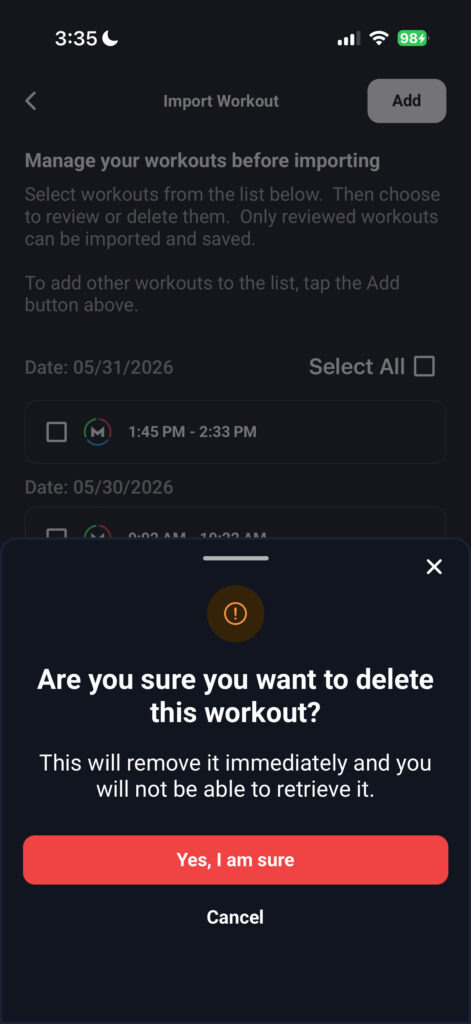
Note:  The M7 records every workout. Even those that you do while using the app in real time (live workout). If you recorded a live workout with the Morpheus M7, do not import this same workout again via the sync process. You can just delete those from the sync list.
However, if you select and import workouts that already exist, nothing bad will happen. The imported workout will override and delete the live workout and none of your data will be duplicated.
Option 2: Importing Workouts from Garmin Connect
If you record workouts with a Garmin device, Morpheus can import them directly.
This is helpful when:
You prefer training with a Garmin watch or other Garmin device (paired to the M7 or other chest strap or the watch/device by itself)
Using the app or M7 directly isn’t practical
For best accuracy, it’s still recommended to pair the M7 to your Garmin device.
Note: Garmin will not send data to Morpheus that has been received from one third-party fitness platform (ie TrainerRoad, Rouvy, Zwift, ErgData, etc). This goes against Garmin’s privacy policy related to API connectivity. To ensure that your Garmin workout can synced successfully to Morpheus, it must be completed on a Garmin watch or other Garmin device and then synced directly from that to Garmin Connect.
Connecting Garmin and Morpheus
Before Garmin Connect can send workouts to Morpheus, you must first grant the appropriate permissions.
In the Morpheus app, make sure that you have you have Garmin selected within Menu – Set up Tracking – Workouts. You can choose to also have Garmin set for sleep and/or steps, but Garmin set for workouts is what you need for this purpose.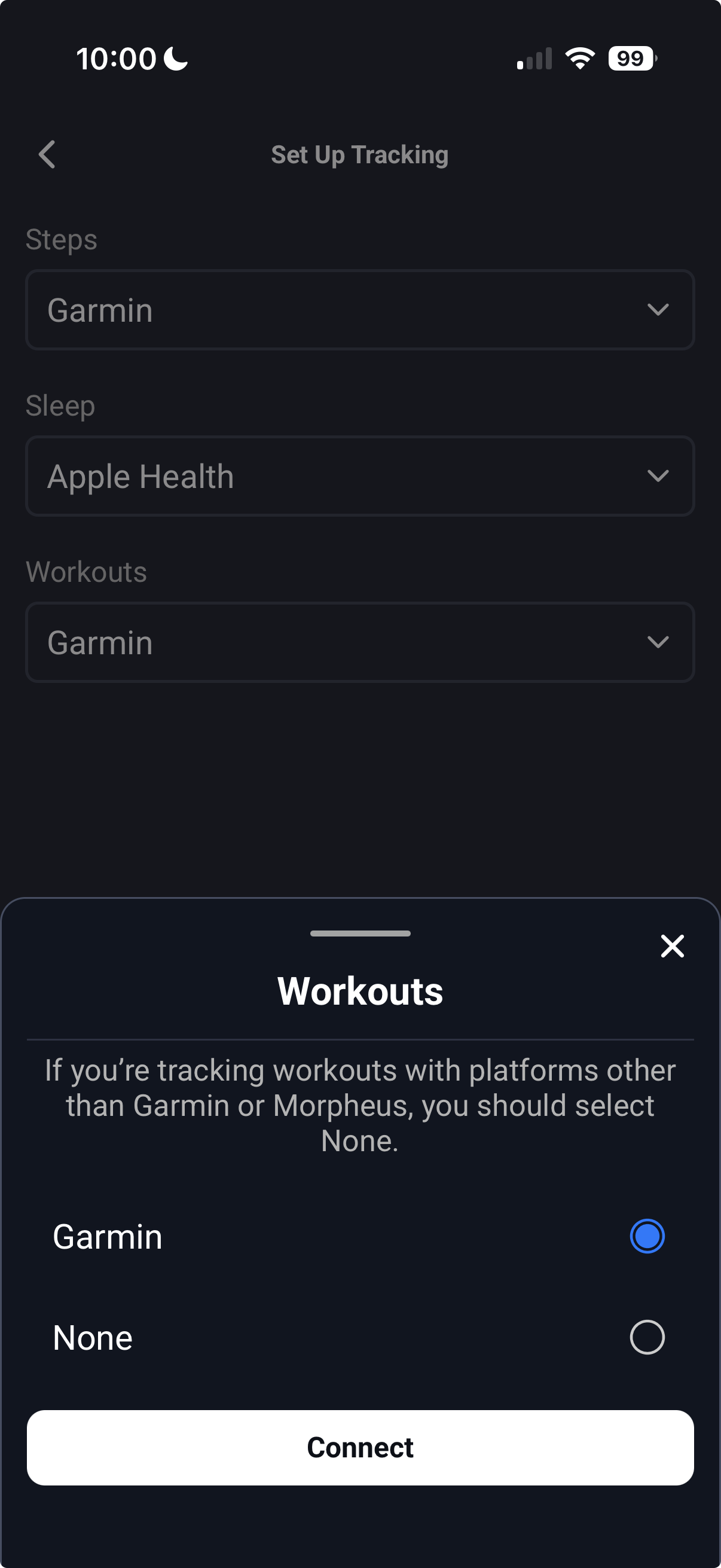
You will need to provide your Garmin Connect credentials when prompted to do so.
Then, you need to have Activities toggled ON. Activities is how Garmin defines workouts in this case.
Tap Save and then tap Agree.
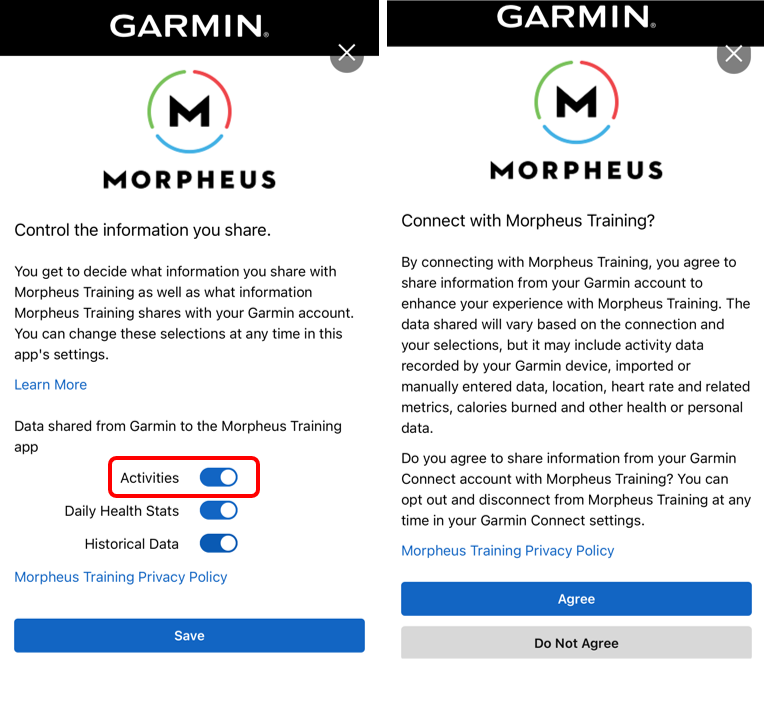
Now you are able to complete workouts on your Garmin watch or Garmin device and then sync them to the Morpheus app from Garmin Connect
Syncing Garmin Workouts
- Ensure that your workout has been fully synced from your Garmin device to your Garmin Connect account.
Open the Morpheus app and tap the download icon in the upper right corner of the home screen. Or tap on Menu and then tap on Import Workout
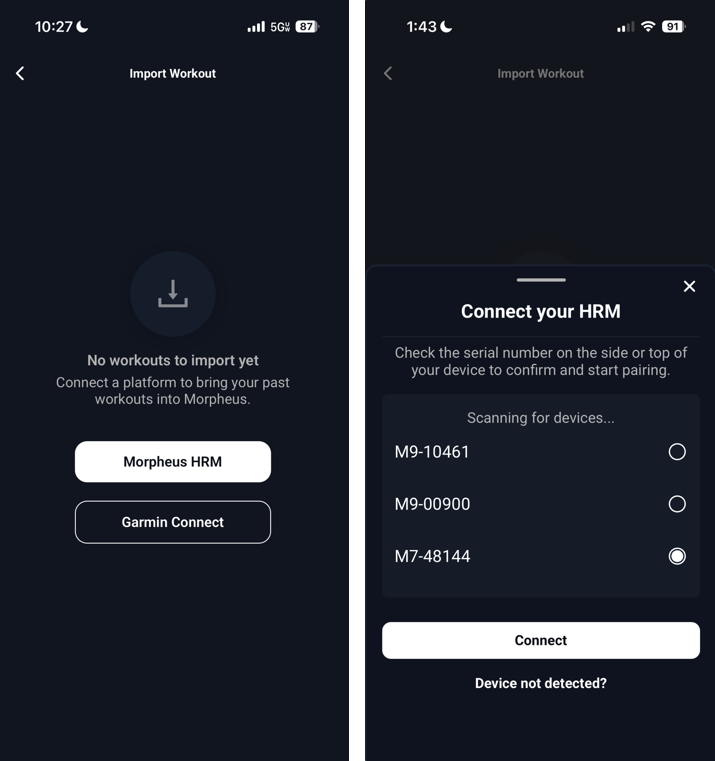
Select Garmin Connect. If you have no workouts in your sync list, you’ll see the screen shown below on the left. If you have any workouts in your sync list, you’ll need to tap the Add button at the top right and then choose Garmin Connect
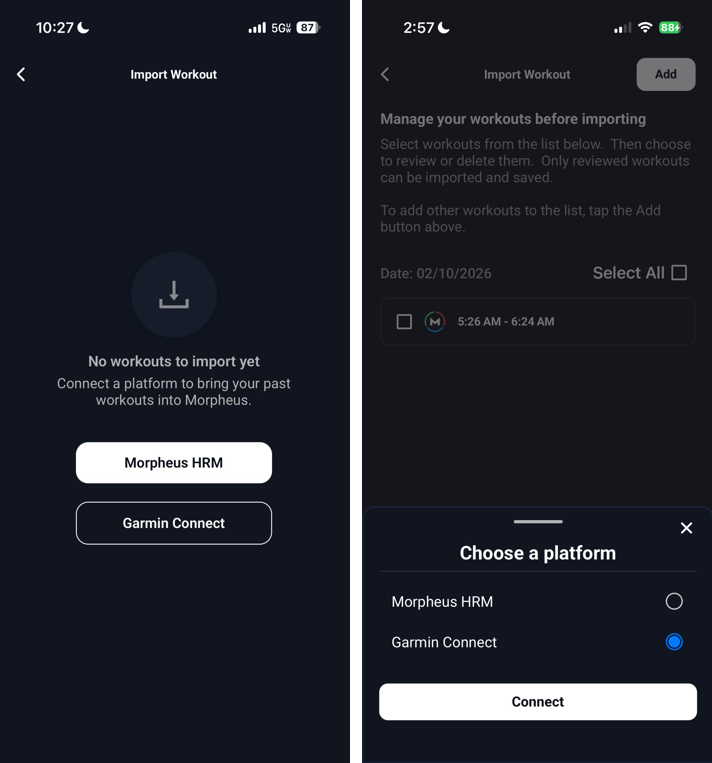
If you have no new Garmin workouts in your Garmin Connect account, you will see a pop-up note that there are no new workouts available to import.
If you do have Garmin workouts that are available to sync to Morpheus, you will see those workouts appear in the sync list.
These workouts will have a Garmin icon as well as a tag of the Garmin workout type.
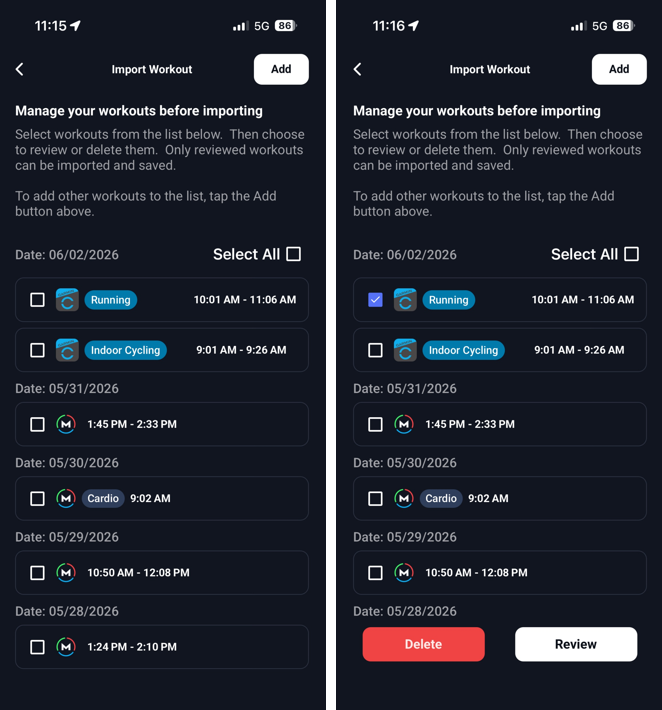
Select any workout from the list that you need to review and fully import into the app.
Any workout that you do not select will remain in the list so that you can Review or Delete it later.
After selecting one or more workouts that you need to fully import into the app, tap Review.
Any workout that has already been recorded live with the app, you can select from the list and then tap Delete.
Reviewing and Importing Workouts (M7 and/or Garmin)
After you have selected the workout(s) from the sync list and tapped the Review button, it’s now time to edit the workout(s) so they can be fully imported to your app.
If you select more than one workout to review from the sync list, the process will start with editing the oldest one and will progress to the newest one.
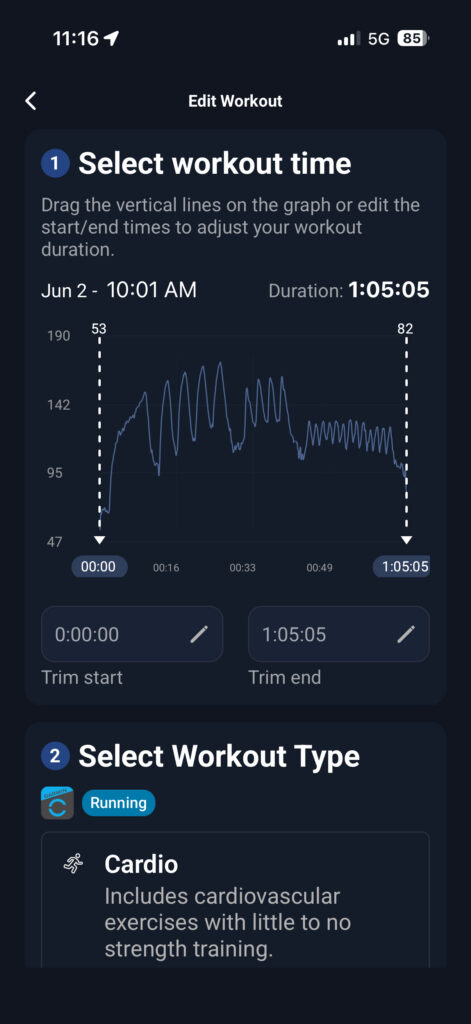
For each workout:
Select workout type (cardio, mixed, strength)
Trim start/end time if needed
- Drag the white dotted lines left or right to include/exclude any “junk time”. Only the data inside of the two white dotted lines will be included in your workout results.
Set RPE and performance
Add notes (optional)
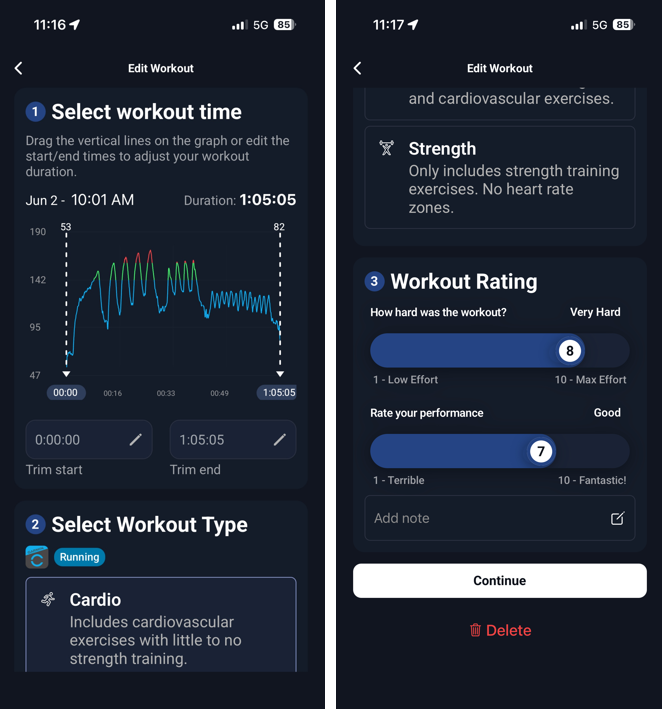
Tap Continue.
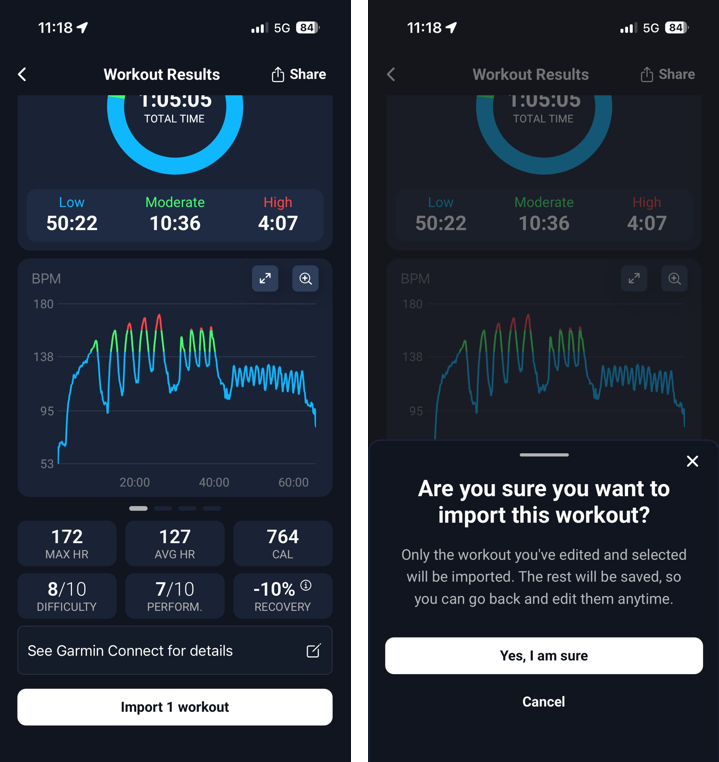
You’ll now see the preliminary workout results screen for the workout that you just edited.
At this point you have two options:
- Tap the back arrow in the upper left to make any further edits
- Tap Import 1 Workout. Tap Yes, I am sure.
- If you selected more than one workout to review from the sync list, there will be a Next button at the bottom of the screen. Tapping that will allow you to edit the the next workout from the list that you selected for review. When you get to the final workout you will import all of them together.