
This lesson focuses on how to access and interpret your workout history and results from any workout.
Viewing Workout History
There are several ways to view your workout history. Each view type can provide different context about your workouts.
The first way to see your workout history is to look at your Weekly Cardio Targets on the home screen.
This will give you an overview of your weekly totals as well as daily breakdowns for your HR zone training time.
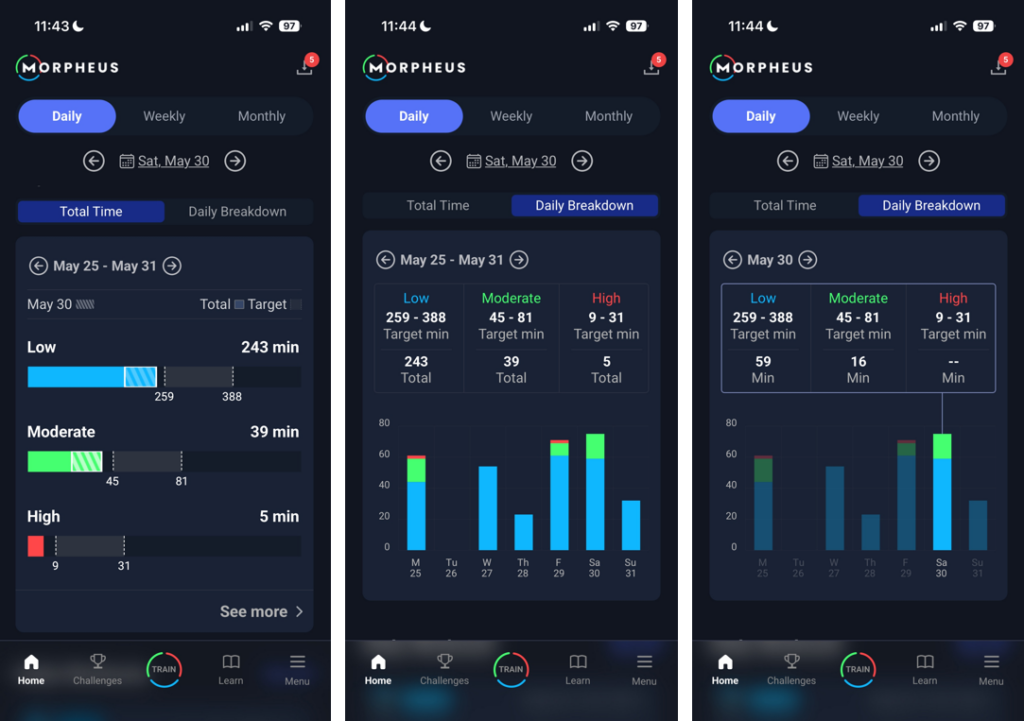
The next way to see your workout history is to scroll to the bottom of the daily home screen. There you will see any workouts you have done on the date that is shown at the top of the home screen.
This will show you the basics of your workout, including workout type, date and time, total duration, and time in each zone.
Tapping on any of these workouts will redirect you to the workout results screen specific to the workout that you tapped on.
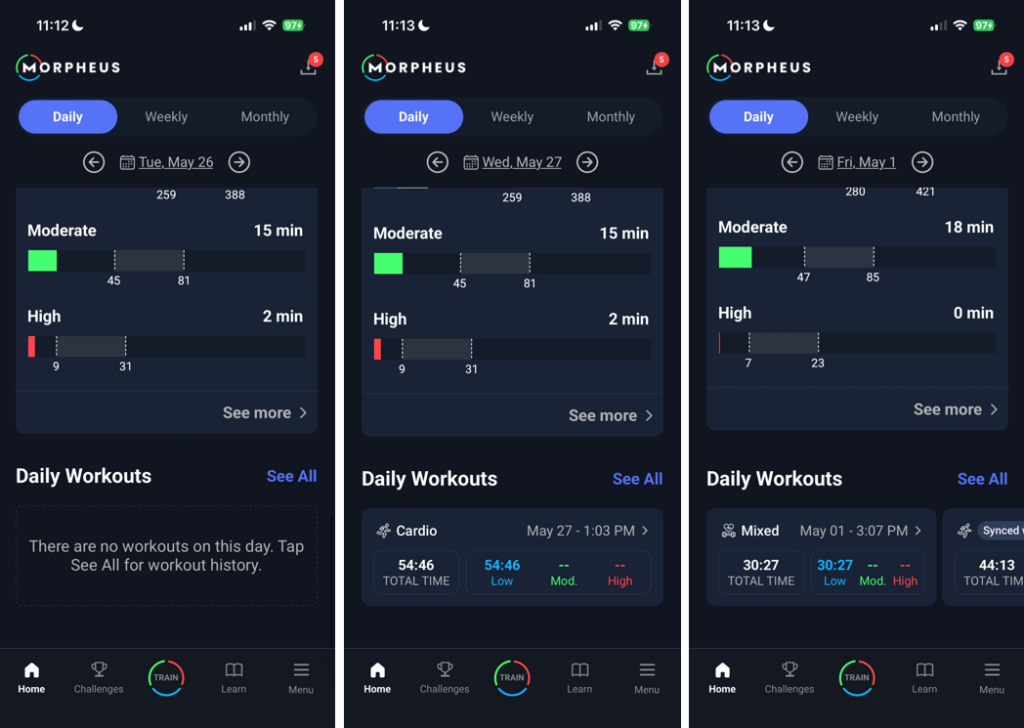
To see a large scrollable list of all of your recorded workouts, tap on the See All button on the right side.
Tapping on any of these workouts will redirect you to the workout results screen specific to the workout that you tapped on.
You can delete a workout by swiping left and confirming. Deletions are permanent.
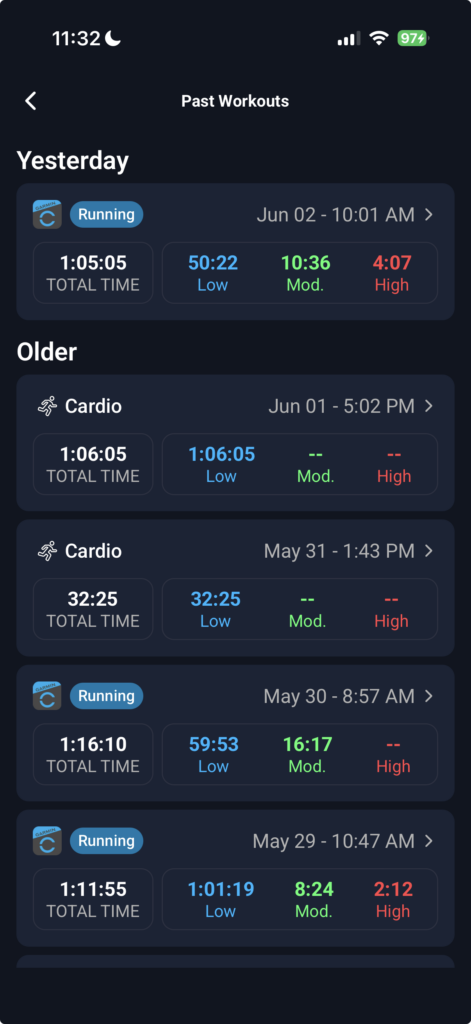
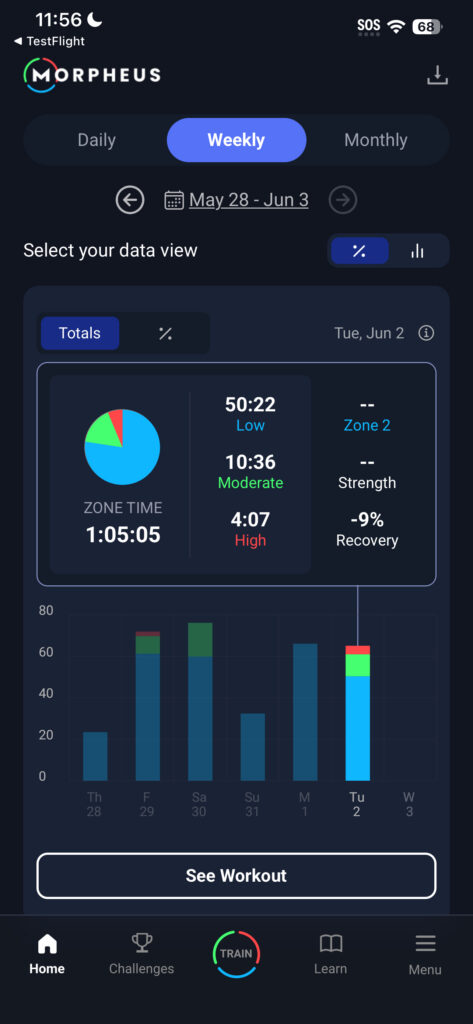
The final way to see your workout history is to tap on the Weekly or Monthly tab at the top of the home screen. Then scroll down to the workouts section.
The Weekly view will show you the last 7 calendar days.
The monthly view will show you the last 30 calendar days or the last 4 calendar weeks.
The date range will be exactly what is shown at the top of the home screen. You can view different date ranges by changing the date range that appears at the top of the home screen.
Within this view is a Totals or % toggle.
- Selecting the Totals toggle will show you the total time in each zone within the selected date range.
- Selecting the % tab will show you the % of your total zone time was in each for within the selected date range.
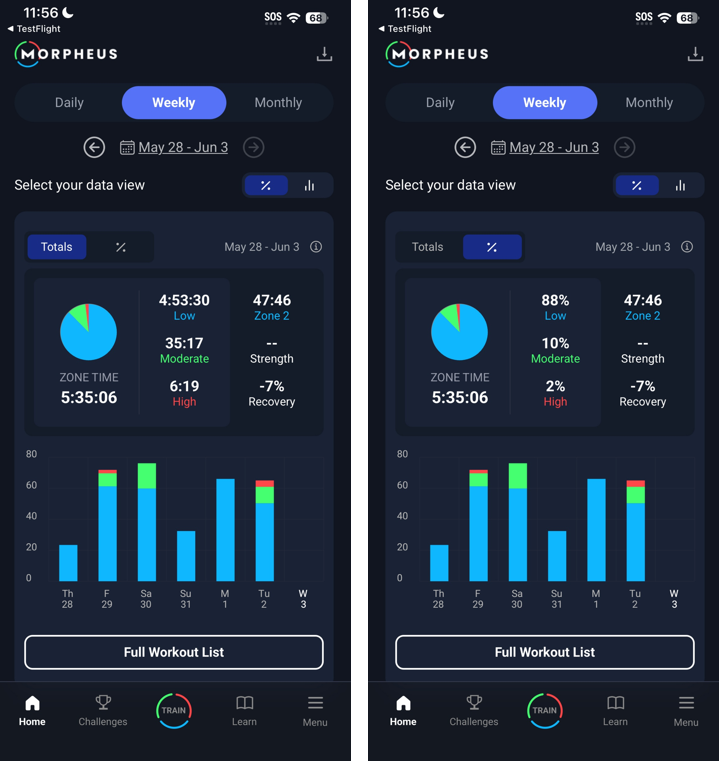
You can tap on any bar in the chart to show only the data specific to that date.
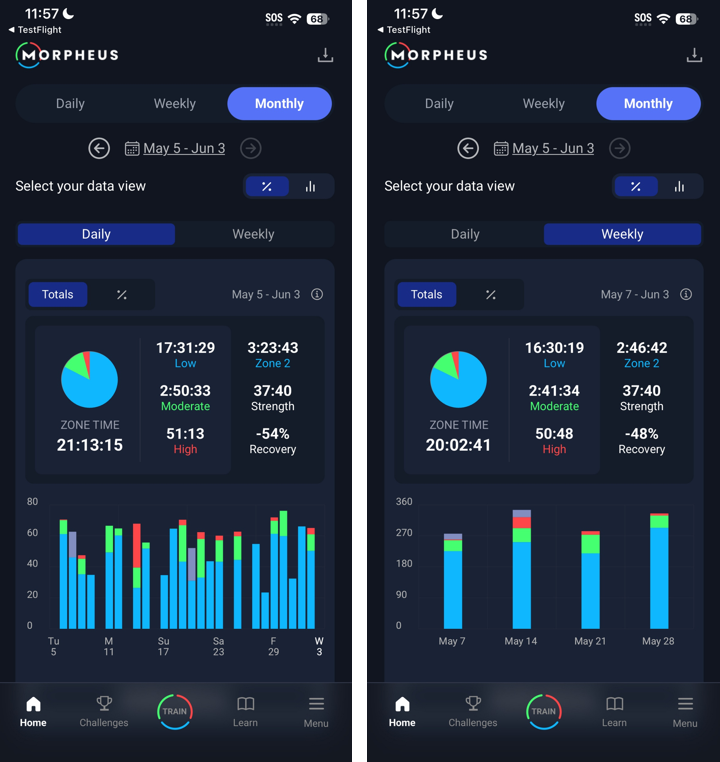
On the Monthly Workouts section, you will see a Daily and a Weekly toggle.
Daily will show you 30 calendar days relative to the date range at the top of the home screen.
Weekly will show you 4 calendar weeks relative to the date ranges at the top of the home screen
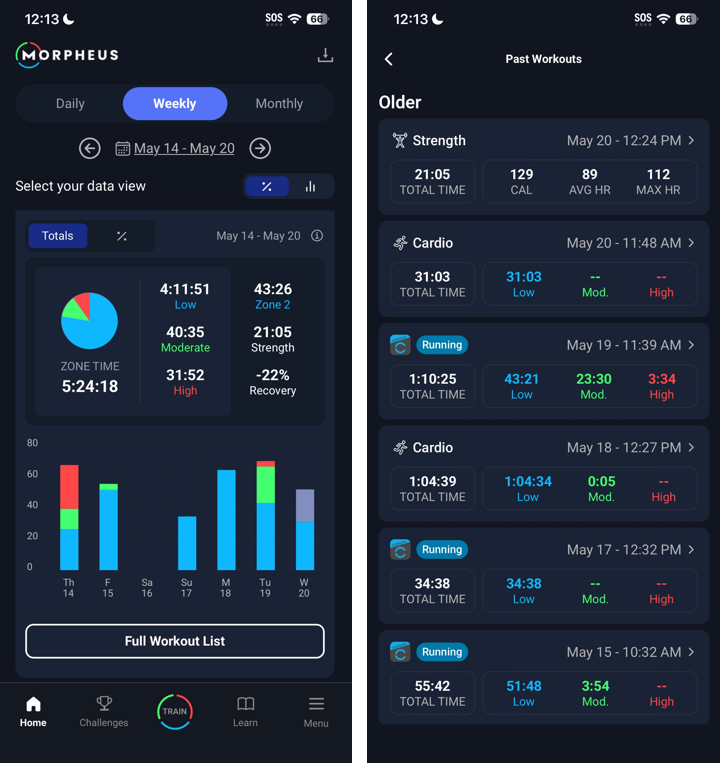
Tapping on the Full Workout List button at the bottom of the screen will open the larger workout history list directly to the workouts within the date range you had selected.
Now that you know how to access various workout history views, it’s time to dive into the workout results screen for a single workout.
Viewing Workout Results
All workout results screens show the same type of data specific to the workout that you selected.
Workout type and timestamp
Total duration
Time in each heart rate zone (cardio & mixed)
RPE and performance ratings
Notes (scroll down the screen to view)
Recovery score adjustment
Calories, average HR, max HR
The 4 views that were referenced earlier in this article are also available to view here by swiping the chart area to the left or to the right.
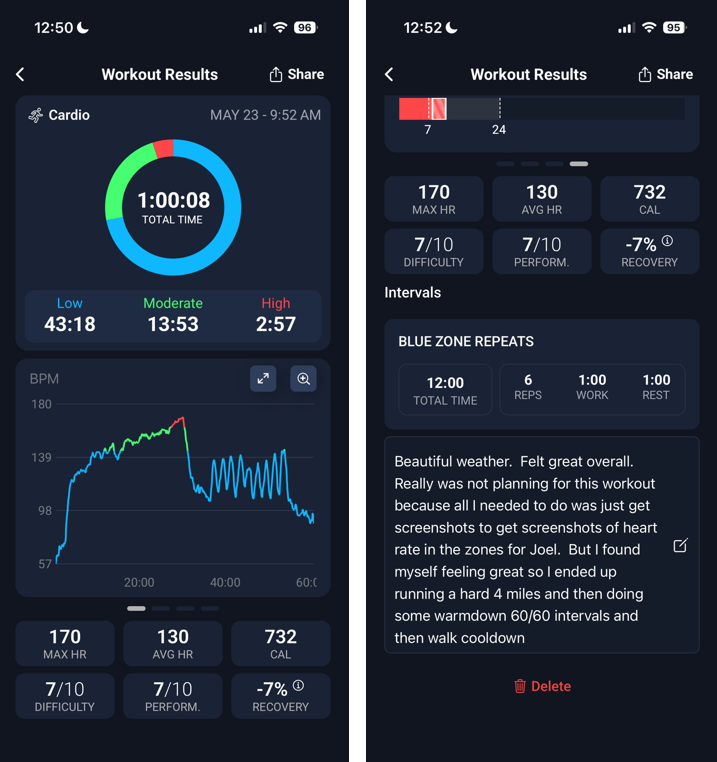
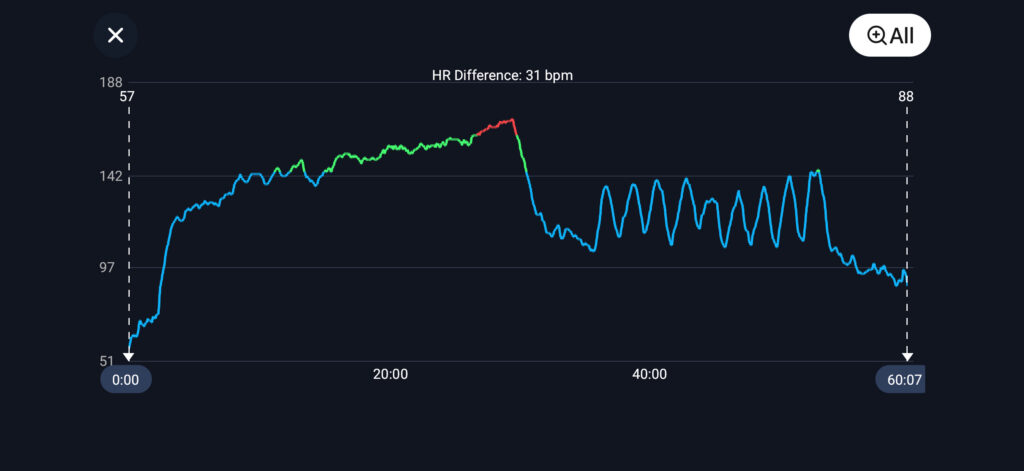
On the line graph view, you can tap on the diagonal arrow icon in the upper right corner to open an expanded landscape view graph. This graph allows you to view timeframes of All, 15 min, or 5 min by tapping the white button in the upper right corner. You can also slide the dotted white lines to the left or to the right. This allows you to see the HR difference between the two lines. To exit this graph view, tap the X in the upper left corner.
The workout is now saved and accessible from Workout History.