
Your Morpheus experience depends on both the settings inside the Morpheus app and the settings on your phone. While most features work automatically, certain permissions and settings control how Morpheus communicates with your phone, imports health data, sends notifications, connects to your M7 heart rate monitor, and more.
This guide explains the most important settings, why they matter, and when you may need to adjust them.
Before You Begin
Most users will never need to change these settings after the initial setup. However, if you're experiencing issues, this guide should help you verify that everything is configured correctly.
If you're setting up Morpheus for the first time, we also recommend confirming these settings before your first recovery assessment or workout.
Account Settings
Your account settings allow you to manage your login credentials and personal account information.
Change Your Password
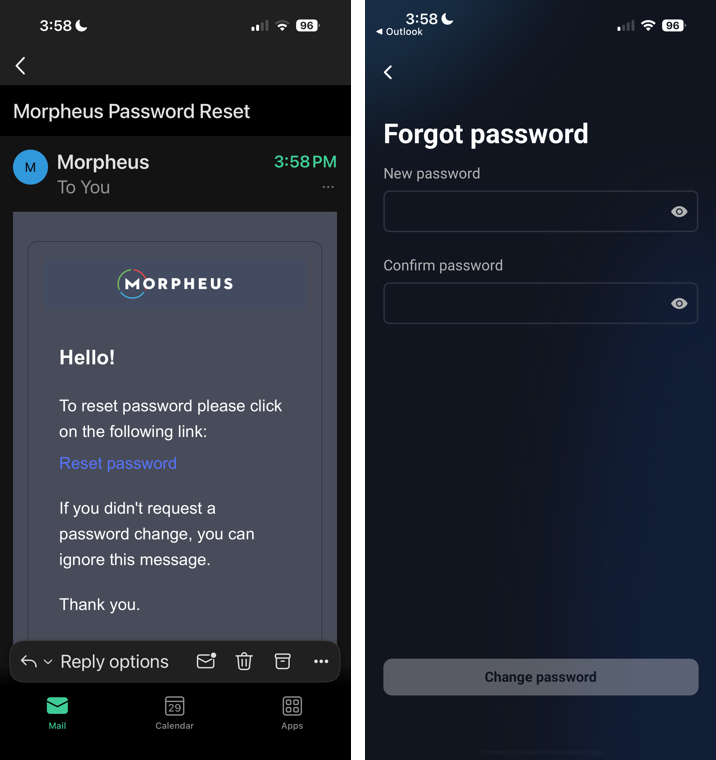
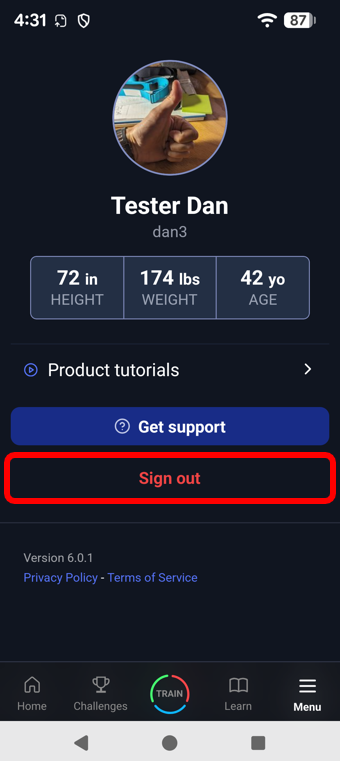
If you'd like to update your password, either due to forgetting it or simply wanting to change it, open the Morpheus app and navigate to Menu -> Logout. If you're already logged out then you're good to go.
After you are logged out of the Morpheus app, tap on the Log In option on the main screen and you'll see the screen that allows you to log into the app.
Select Forgot Password from this login screen and follow the instructions to reset it.
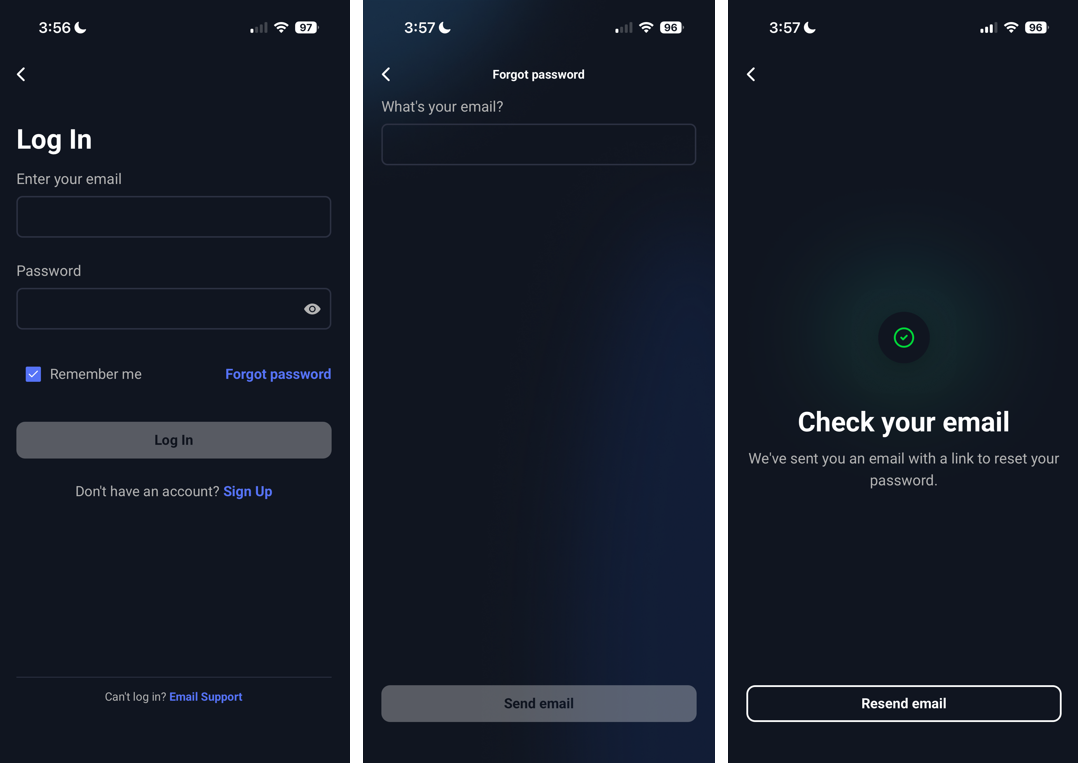 You will receive an email from support@trainwithmorpheus.com with subject line Morpheus Password Reset.
Tap the Reset password link in the email and you will be redirected back into the app to set a new password.
Log Out
Logging out and back into your account can occasionally resolve syncing or account-related issues. This should only be done if recommended by Morpheus Support or as part of troubleshooting.
Delete Your Account
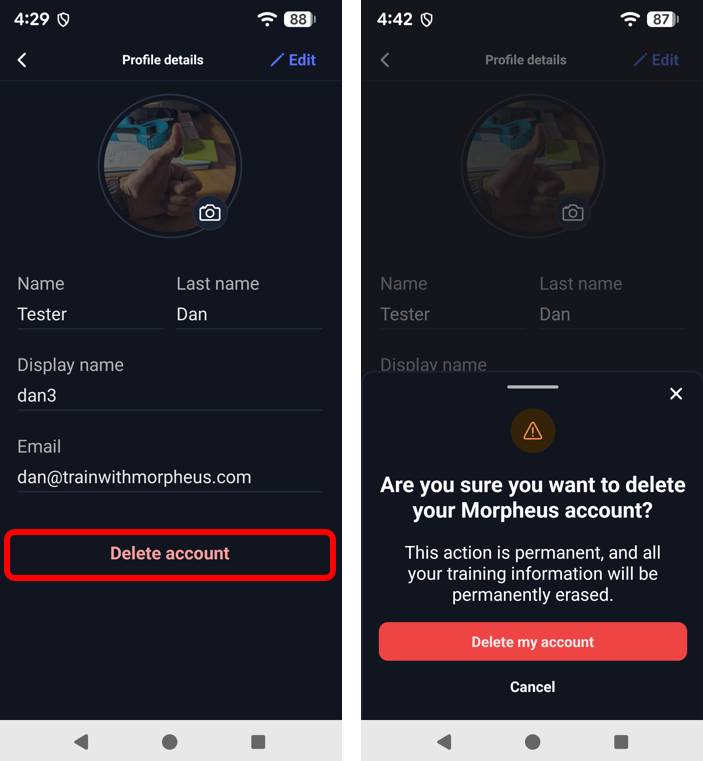
If you no longer wish to use Morpheus, you can permanently delete your account from within the app.
Please note that deleting your account permanently removes your Morpheus data and cannot be undone.
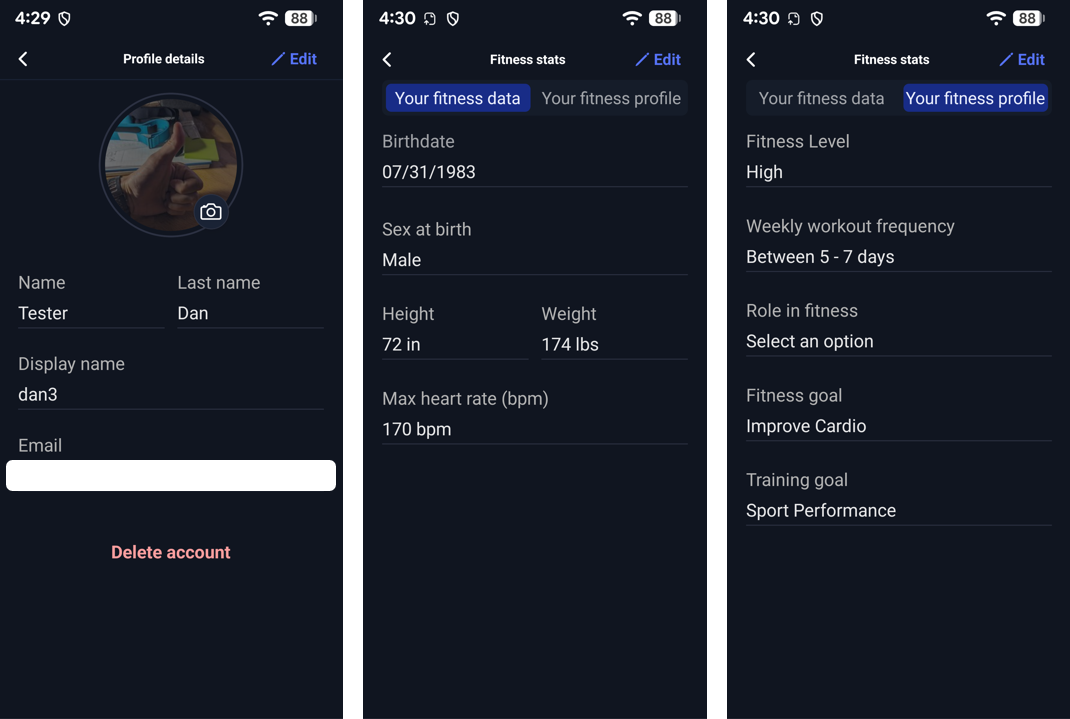
Profile & Fitness Information
Your personal information helps Morpheus provide accurate recovery analysis, calorie estimates, and training recommendations.
Review your profile periodically to make sure it remains current.
Recommended items to verify include:
- Display name
- Profile picture
- Weight
- Max heart rate
- Perceived fitness level
If your weight or fitness level changes significantly, updating your profile helps ensure your training recommendations remain accurate.
Permissions
When you first install Morpheus, your phone may ask you to grant permission for the app to access certain features, such as Bluetooth, notifications, or health data.
These permissions allow Morpheus to communicate with your device and provide features like connecting to your M7 heart rate monitor, importing sleep data, or sending reminder notifications.
You are always in control of these permissions. You can allow or deny them during setup, and you can change them at any time in your phone's settings.
If a feature in Morpheus isn't working as expected, one of the first things to check is whether the required permission has been granted.
Common Morpheus Permissions
Permission | Why Morpheus Uses It | Required? |
|---|---|---|
Bluetooth / Nearby Devices | Connects to your Morpheus M7 heart rate monitor during recovery assessments and workouts. | Yes (for HR Monitor connectivity) |
Notifications | Sends reminders for recovery, workouts, and other important alerts. | Recommended |
Apple Health / Health Connect | Imports supported health and fitness data, such as sleep, steps, calories, and distance. | Optional |
Background App Refresh (iPhone) | Allows certain app updates and syncing tasks to occur while Morpheus isn't open. | Recommended |
Battery Optimization (Android) | Helps prevent Android from restricting Morpheus while running in the background. | Recommended |
How to Review App Permissions
iPhone
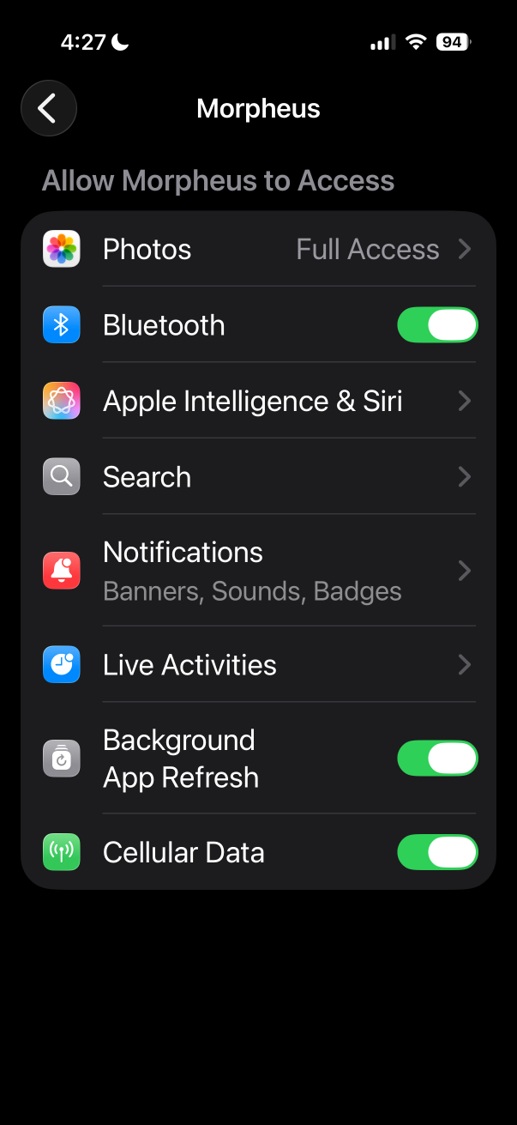
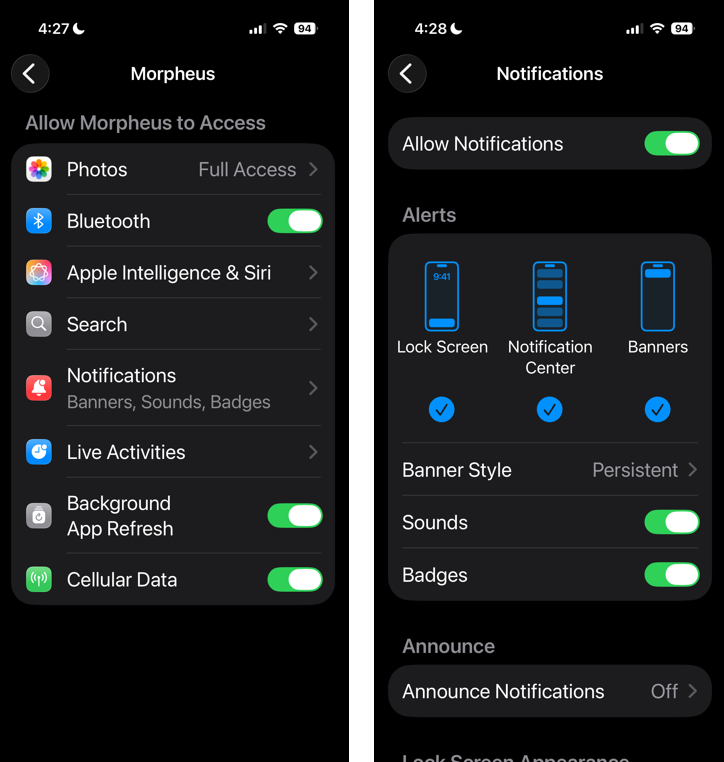
Open Settings → Apps → Morpheus to review permissions such as:
- Bluetooth - required for Bluetooth connection of HRM
- Notifications - see the Notifications section below
- Live Activities - see the Live Activities section below
- Background App Refresh
- Cellular Data - for times when WiFi may not be available
Android
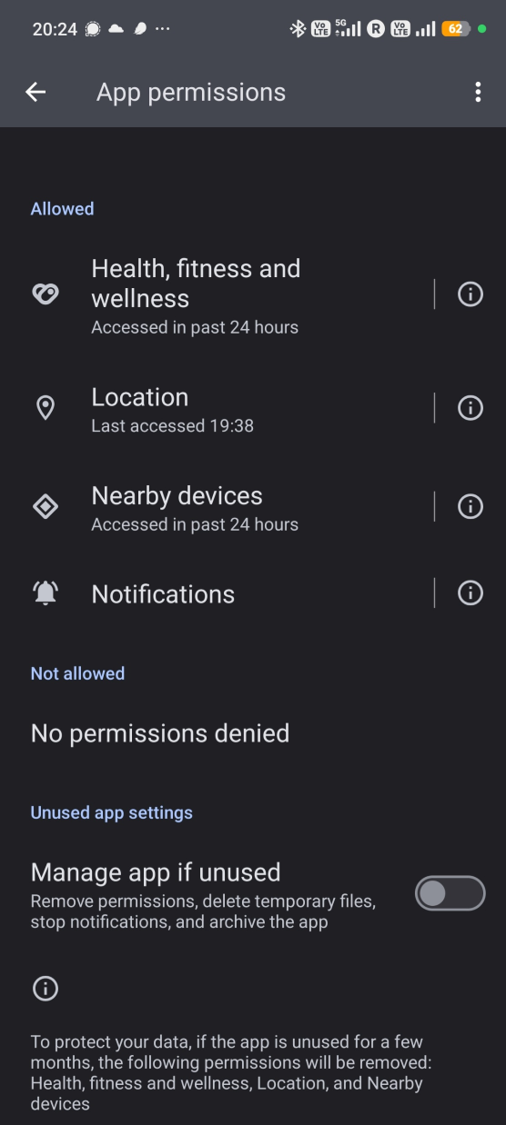
Open Settings → Apps → Morpheus → Permissions to review permissions such as:
- Health, fitness, and wellness - Only if you are using Health Connect as a 3rd party data source for sleep/steps
- Location - required for Bluetooth connection of HRM
- Nearby devices - required for Bluetooth connection of HRM
- Notifications - see the notifications section below
- Other available permissions (depending on your Android version and device manufacturer)
Tip: If you've accidentally denied a permission, you don't need to reinstall Morpheus. Simply return to your phone's settings, enable the permission, and reopen the app.
Notifications
Notifications help keep you on track by reminding you to complete your daily recovery assessment, begin scheduled workouts, and stay informed about important activity within Morpheus.
If you're not receiving notifications, there are two places to check.
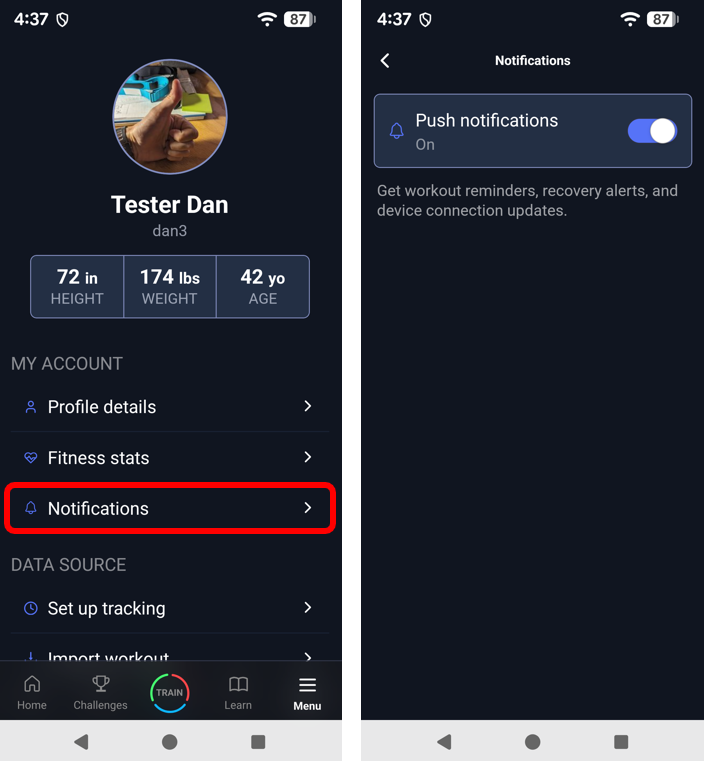
Step 1: Verify Notification Settings in Morpheus
Open Menu → Notifications
Step 2: Verify Notification Permissions on Your Phone
Even if notifications are enabled inside Morpheus, your phone can still prevent them from appearing.
iPhone
Go to Settings → Apps → Morpheus → Notifications
Verify that:
- Allow Notifications is enabled
- Lock Screen notifications are enabled (optional)
- Notification Center is enabled (optional)
- Banner notifications are enabled (optional)
Android
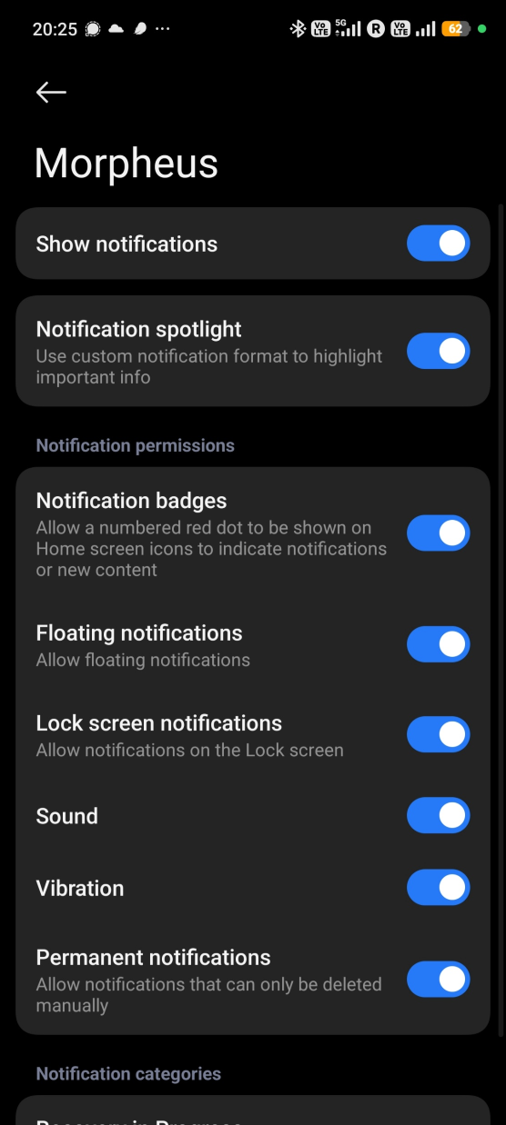
Go to Settings → Apps → Morpheus → Notifications
Make sure notifications are allowed.
Depending on your phone manufacturer, notification settings may look slightly different.
Recovery Test Start/End Vibration
The Morpheus app can force a phone vibration when starting a recovery test and when the recovery test has ended.
To ensure you experience the double vibration at the end of the test, you will need to ensure that your phone settings allow for it.
- iOS: Settings — Accessibility — Touch — Vibration = ON.
Also, under Sounds & Haptics, you need to have System Haptics toggled ON and under Haptics specifically, you need to have that set to “Always Play” or “Play in Silent Mode” - Android: Settings — Sound & Vibration — Vibration & Haptics — Use vibration & haptics = ON — Alarm vibration = ON
- Note that the exact settings may be different depending on your phone manufacturer and OS.
Live Activities & Dynamic Island (iPhone)
Live Activities allow your workout to remain visible on your Lock Screen while you're training.
On supported iPhone models (iPhone 14 Pro and newer), your workout can also appear in the Dynamic Island, allowing you to quickly view your workout timer and heart rate without reopening the app.
If Live Activities are disabled, your workouts will still record normally—they simply won't appear on your Lock Screen or in the Dynamic Island.
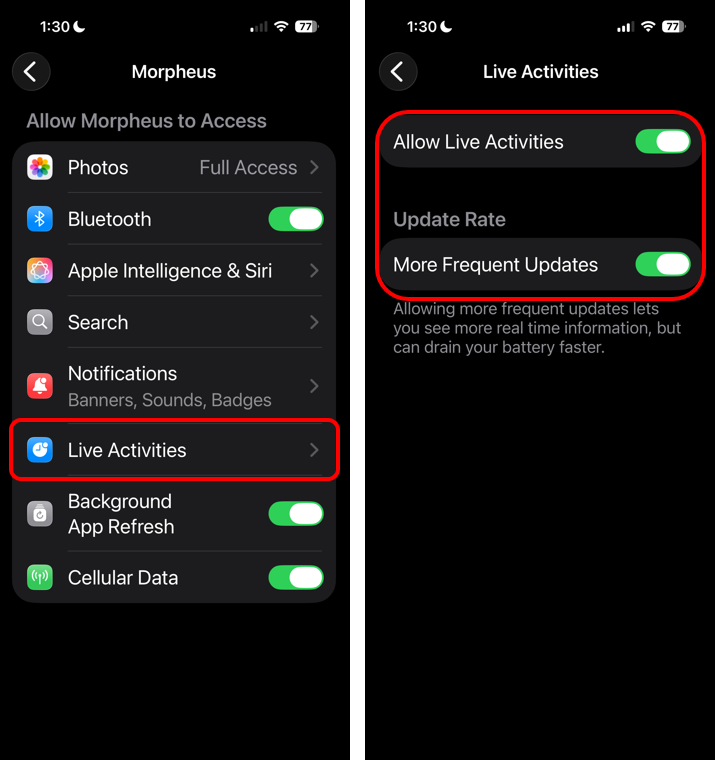
To verify this setting:
Settings → Apps → Morpheus → Live Activities
Make sure Live Activities are enabled.
Health & Activity Permissions
Morpheus can securely read selected health and activity information from your phone to provide more accurate recovery analysis and training recommendations.
Only the permissions you approve will be available to Morpheus.
Apple Health
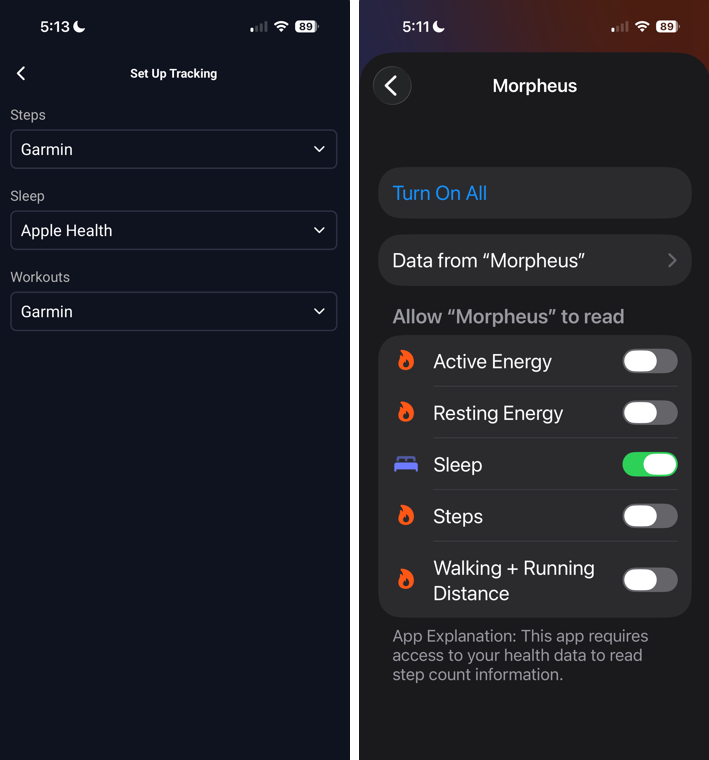
If you use Apple Health, verify that Morpheus has permission to access the data you'd like to use.
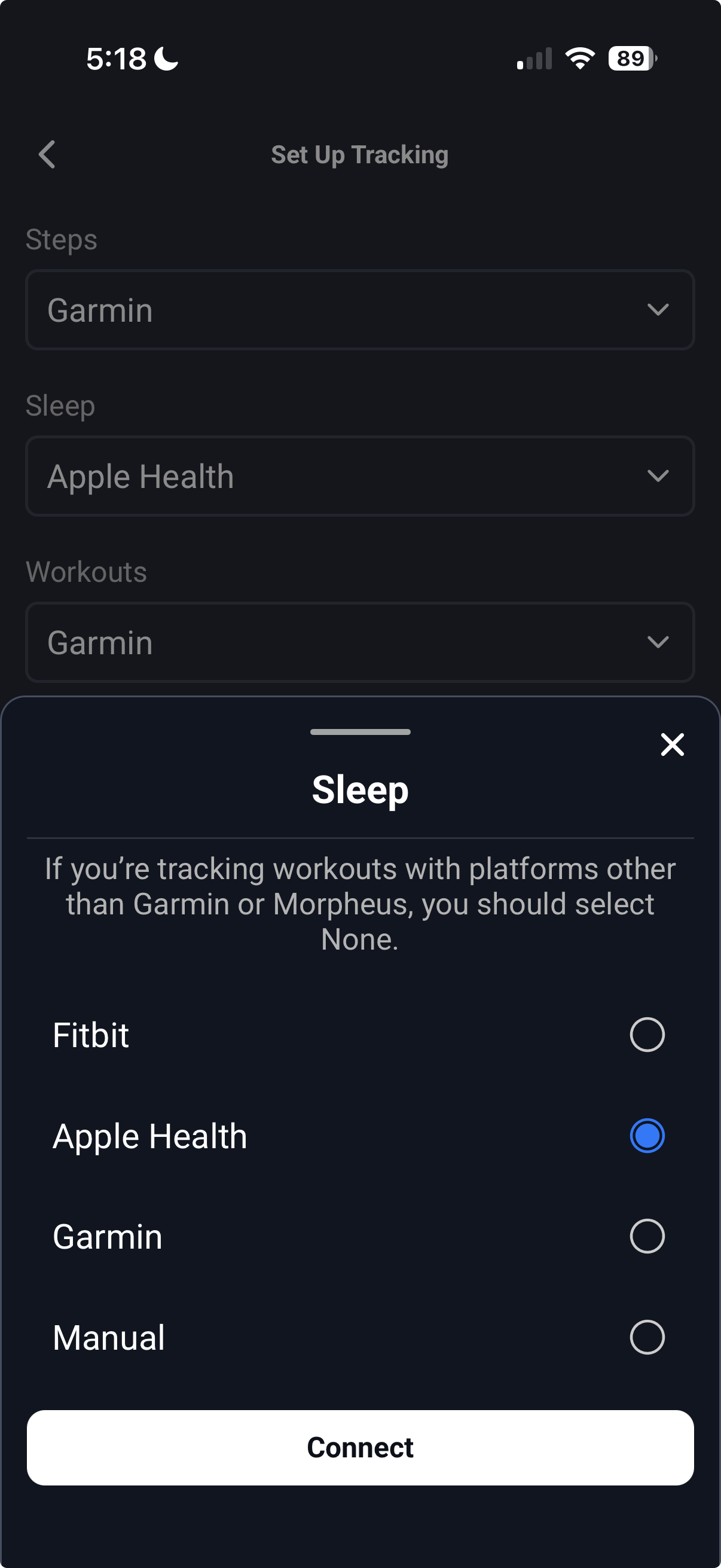
In the Morpheus app go to Menu → Set Up Tracking
Select Apple Health in the dropdown menu for the data you want to be available to Morpheus. Then tap Connect.
Current permissions include:
- Sleep
- Steps
- Active Energy
- Resting Energy
- Walking & Running Distance
Disabling one permission only affects that specific type of data.
Health Connect (Android)
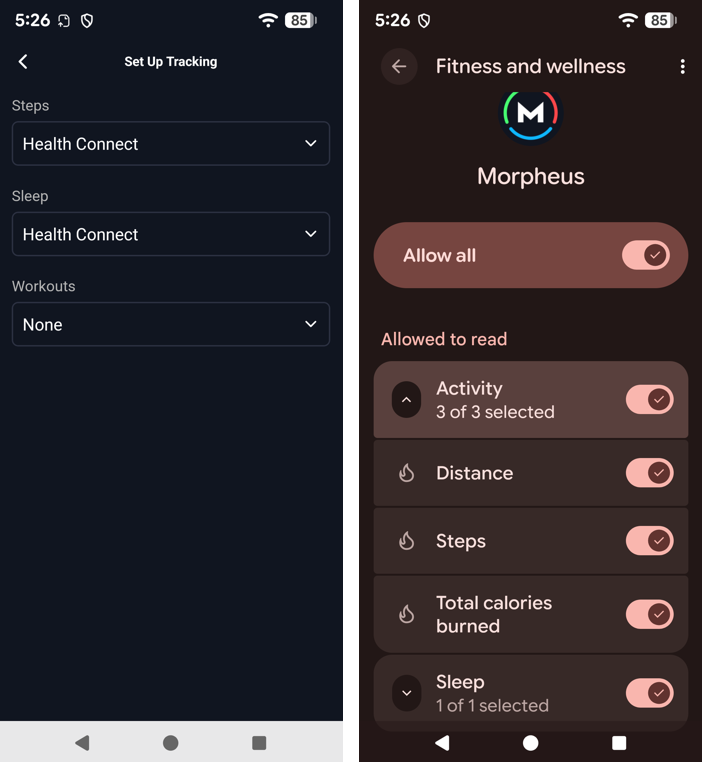
If you use Health Connect, review your permissions to ensure Morpheus has access to the data you'd like to import.
Common permissions include:
- Sleep
- Steps
- Total Calories burned
- Distance
As with Apple Health, disabling a permission only affects that specific data type.
Automatic Sleep Import
If you've enabled sleep syncing, Morpheus can automatically import your previous night's sleep without requiring any manual action.
If your sleep doesn't appear, consider the following:
- Has your sleep tracker finished syncing with it's own platform? (ie Apple Health or Garmin Connect)
- Has Morpheus been granted permission to read sleep data?
- Has the Morpheus app been opened since your sleep synced?
In many cases, simply opening the Morpheus app after your synced data has synced will trigger the import.
Battery Optimization (Android)
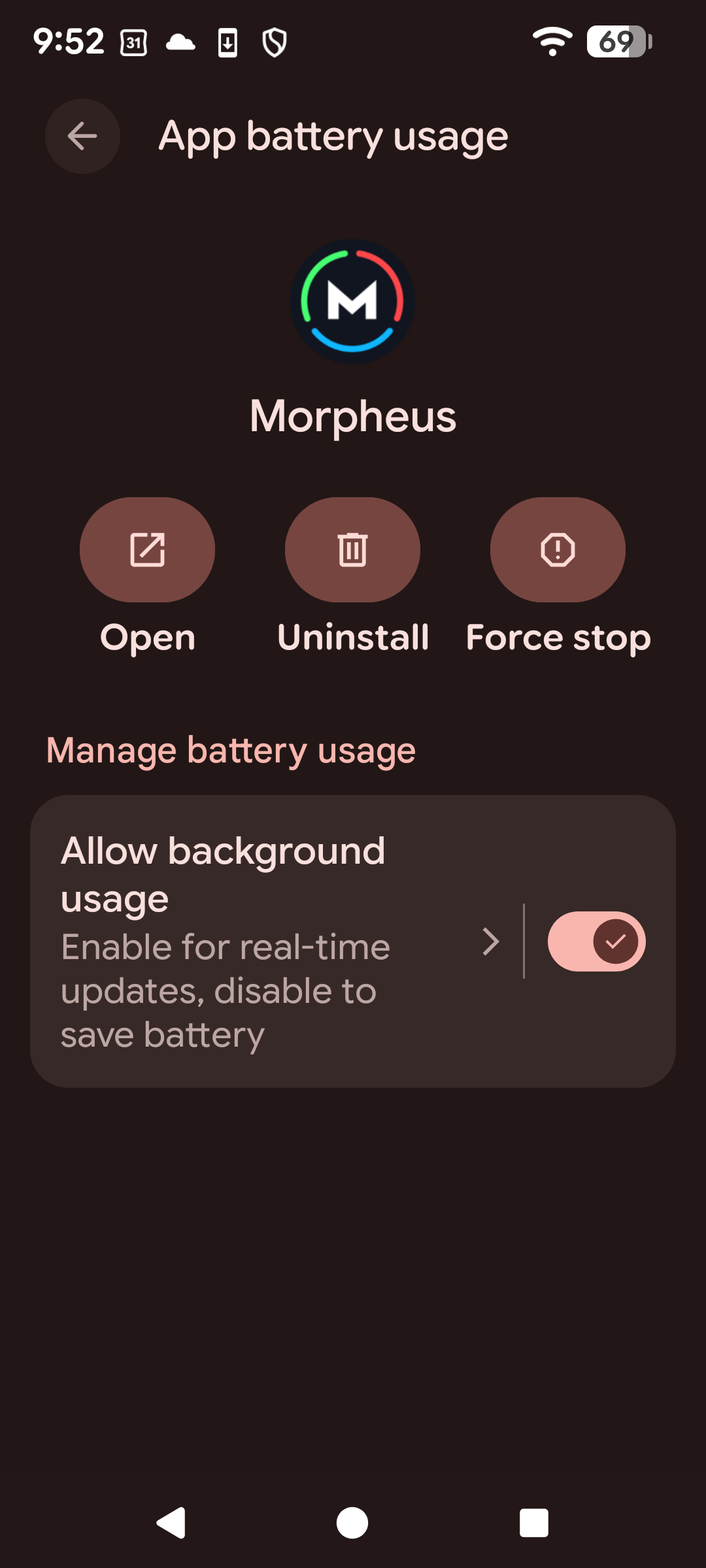
Many Android phones automatically limit background activity to improve battery life.
In some cases, these battery-saving features can interfere with Bluetooth connections, notifications, or background syncing.
If you're experiencing these issues, consider changing Morpheus to Unrestricted or Don't Optimize battery usage.
The exact location and wording vary by phone manufacturer.
Keeping Morpheus Up to Date
We recommend using the latest version of both the Morpheus app and your phone's operating system.
App updates frequently include:
- New features
- Performance improvements
- Bug fixes
- Compatibility updates
Likewise, keeping iOS or Android reasonably up to date helps ensure compatibility with Bluetooth, Apple Health, Health Connect, and other system features.
Android: Clearing the App Cache
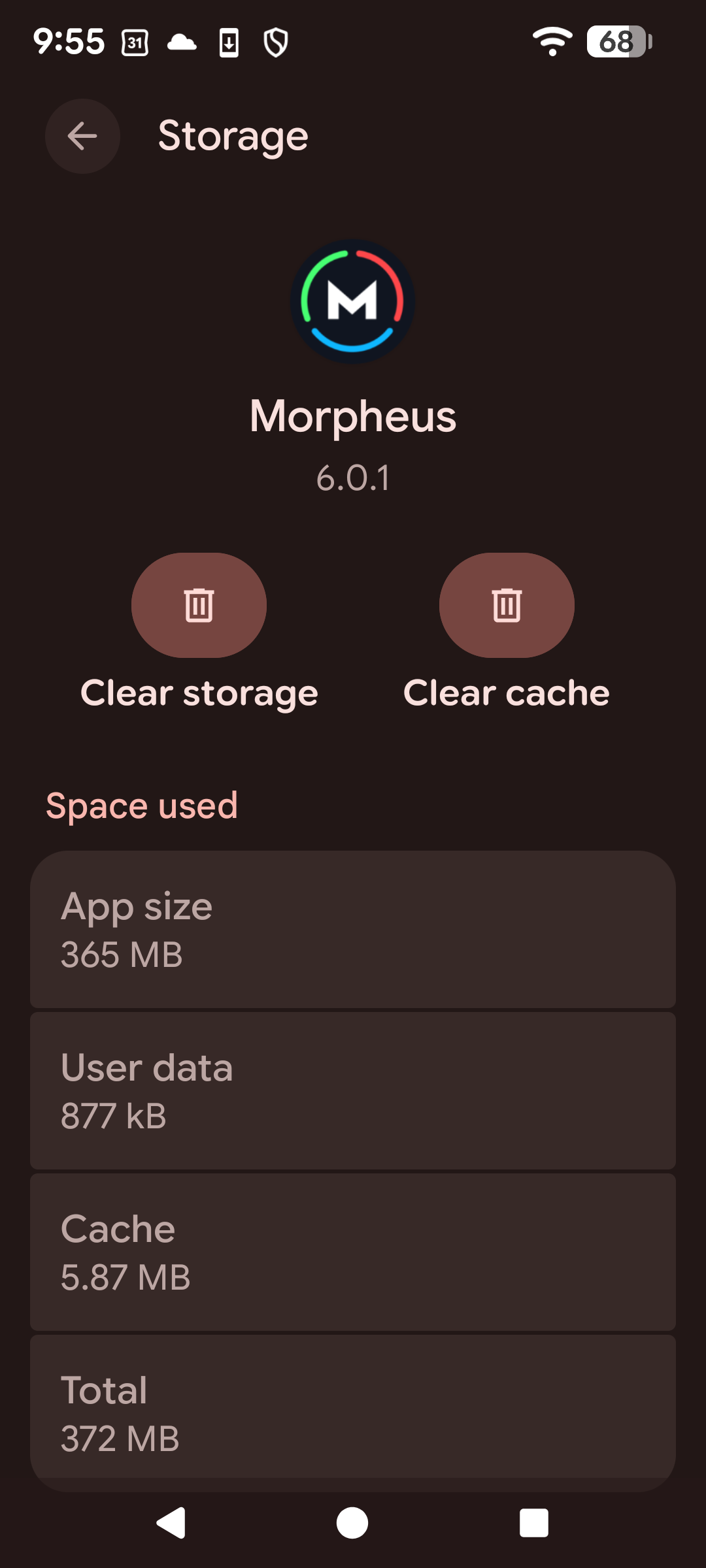
If you're troubleshooting an issue on Android, Morpheus Support may recommend clearing the app cache.
Clearing the cache or storage removes temporary files without deleting your workouts or account information. You will not lose any data by doing either of these things. But note that it may reset certain settings that the app had remembered, such as your default HR monitor selection or your interval settings.
Force Closing the App
If Morpheus appears frozen or becomes unresponsive, force closing and reopening the app may resolve the issue.
This should only be used for troubleshooting and is not something you need to do as part of normal app use.
Restart Your Phone
Restarting your phone can resolve a surprising number of Bluetooth, syncing, and connectivity issues.
If you've completed the troubleshooting steps above and are still experiencing problems, try restarting your phone before contacting Morpheus Support.
Troubleshooting Checklist
Before contacting support, verify the following:
Notifications aren't working
✓ Notifications are enabled in Morpheus
✓ Notifications are enabled on your phone
✓ Focus Mode or Do Not Disturb isn't blocking notifications
✓ Battery optimization isn't restricting Morpheus (Android)
M7 won't connect
✓ Bluetooth is enabled
✓ Bluetooth permission is granted
✓ The M7 is charged
✓ The heart rate strap is being worn correctly
✓ The M7 isn't currently connected to another device
Sleep isn't importing
✓ Sleep exists in Apple Health, Health Connect, Garmin Connect, or Fitbit
✓ Sleep permission is enabled
✓ Morpheus has been opened after syncing
Live Activities aren't appearing
✓ Your iPhone supports Live Activities
✓ Live Activities are enabled
✓ You're using a supported version of iOS
Need More Help?
If you've verified the settings above and are still experiencing issues, our support team is happy to help.
To help us troubleshoot more quickly, please include the following information when contacting support:
- Your phone model
- iOS or Android version
- Morpheus app version
- A description of the issue
- Screenshots, if applicable
The more information you can provide, the faster we'll be able to identify the cause and help you get back to training.