
Morpheus isn’t just a recovery tool — it’s designed to guide how you train each day, in real time.
Once your recovery test is complete, Morpheus uses that information to adjust your daily heart rate training zones, helping you match training intensity to your body’s readiness.
This allows you to train with purpose instead of guessing — pushing harder when your body is ready and pulling back when it’s not.
Morpheus can record your workouts in multiple ways so you can train in the way that works best for you.
Whether you want to train with your phone, without your phone, or using a Garmin device, Morpheus ensures that your workouts are captured accurately and included in your recovery and training data.
This lesson focuses on how to record workouts.
For guidance on how to choose training intensity, refer to the training strategy lessons later in Morpheus 101.
Ways to Record Workouts in Morpheus
There are three supported ways to get workouts into Morpheus:
Live Training with the Morpheus App (Live Mode)
Training with the M7 Without the App (Offline Mode)
Importing Workouts from Garmin Connect
This article covers Live Training with the Morpheus App (Live Mode).
Live Training with the Morpheus App (Live Mode)
This is the best option when you can have your phone with you during training.
Live mode allows you to:
See your heart rate and current zone in real time
Track time spent in each zone
Starting a Live Workout
Open the Morpheus app
Tap the TRAIN icon at the bottom-center of the screen
Select a workout type:
Cardio – cardiovascular training only
Mix – cardio and strength intermixed
Strength – strength training only
Note: Heart rate zones are not displayed during strength-only workouts.
For more details, see the Morpheus Heart Rate Zones lesson.
If you are doing separate strength and cardio sessions, track them as two separate workouts.
Tap Continue when you have made the workout type selection
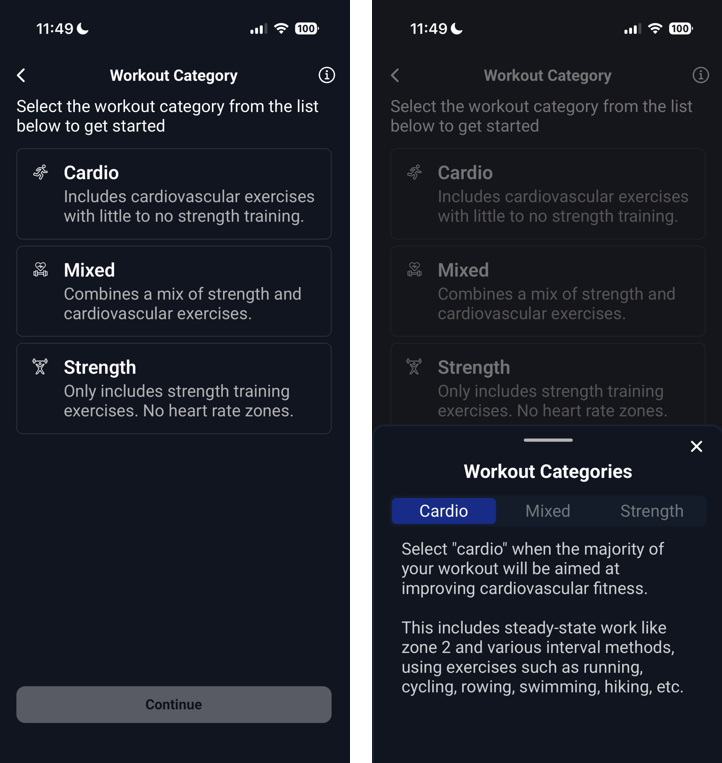
Connecting a Heart Rate Monitor
Important: The M7 can only be connected when it is powered on and it only powers on when worn properly.
For fit and usage tips, review Heart Rate Monitor Basics.
Tap Connect HR Monitor
Select your M7 (or any compatible Bluetooth HRM) from the device list
Tap Connect
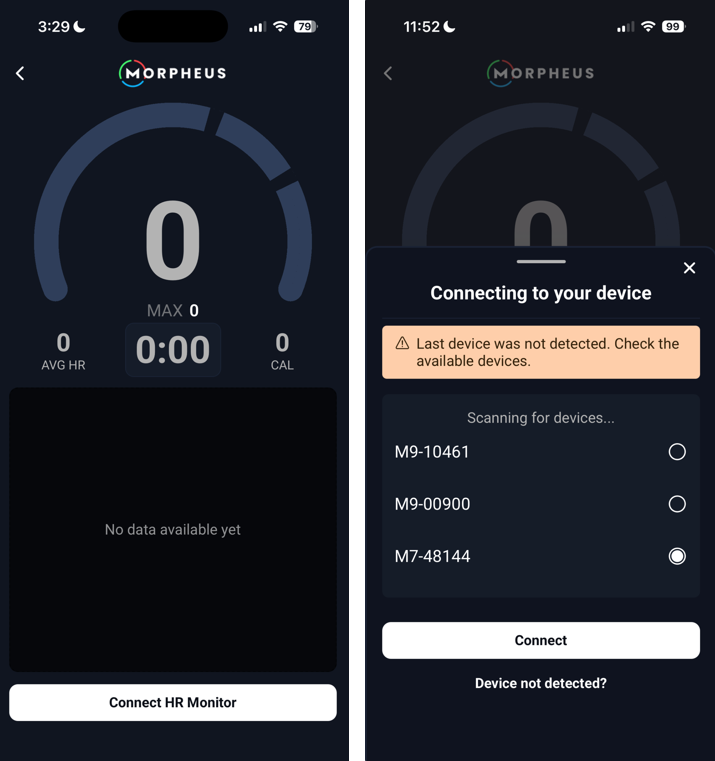
Note: You can choose to set your device as the default device. This means that when you tap Connect, the app will automatically attempt to connect to your default device instead of showing you the device list.
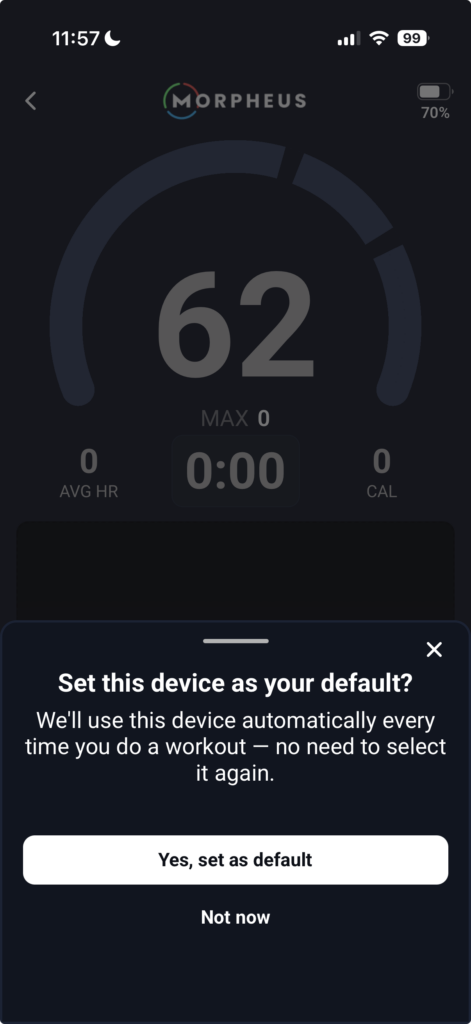
Once connected:
Your heart rate will appear on screen
Battery level of your HRM will be shown in the upper-right corner
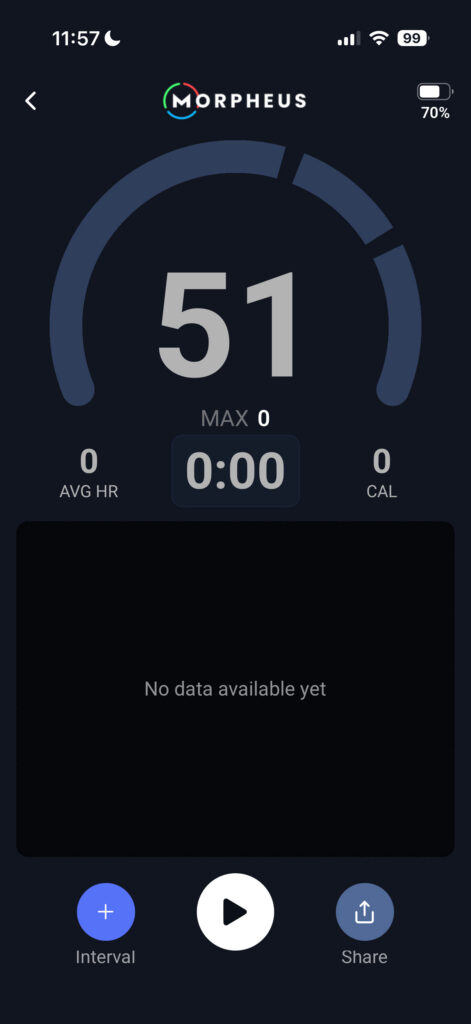
At this point you have two options:
- Tap the white PLAY button to begin your workout. Or…
- Tap the + Interval button to set up 1 of the 12 different built in interval methods
Note: You can tap the + Interval button after you have already started your workout so you do not need to do it beforehand if you plan to use that feature.
To learn more about the Zone-Based Interval Training (ZBIT) feature, check out this lesson.
Live Data During the Workout
Your heart rate appears in the center of the screen
The color reflects your current Morpheus heart rate zone
The circular dial fills as you move through zones.
- For Cardio and Mix sessions, you will see the circular dial separated into 3 sections. Each of those sections represent your 3 Morpheus zones for today.
- For Strength sessions, you will see only 1 continuous circular dial that will only fill in a gray color, as there are no HR Zones for strength training.
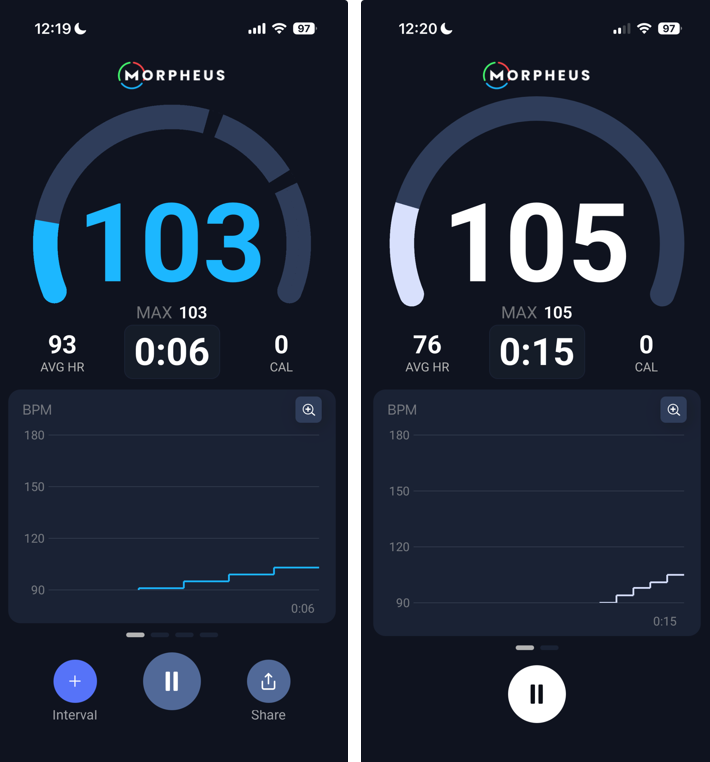
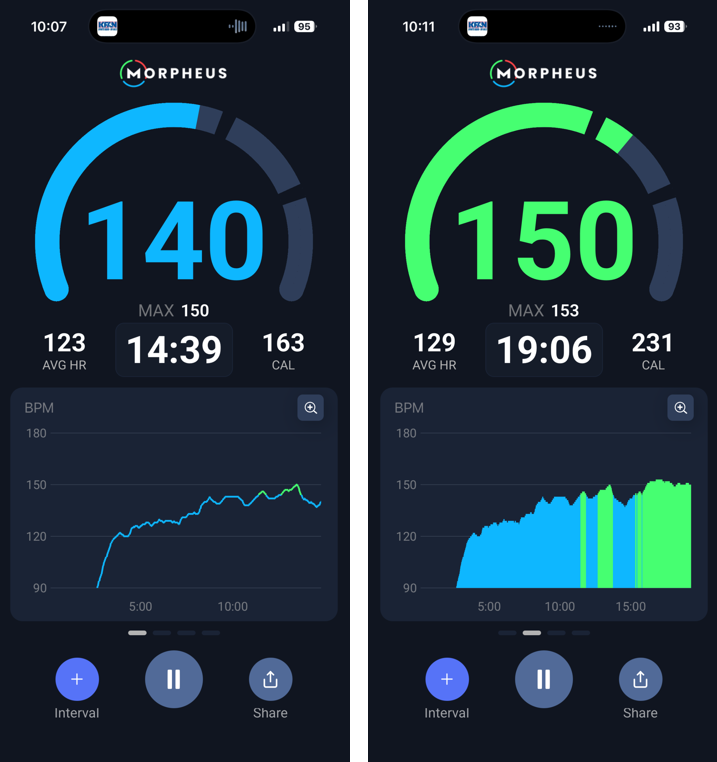
During Cardio and Mixed workouts, you can swipe between 4 different data views during the workout.
To change from one view to another, swipe the chart section of the screen to the left or to the right. There are 4 line areas below the chart. The one that you are on is filled with gray color.
- The first view is a line graph that will follow your real time heart rate and will change colors based on the zone you are in.
- The second view is a bar graph that will follow your real time heart rate and will change colors based on the zone you are in.
- On both of the graph views you can tap magnifying glass symbol or anywhere in the graph area. This will allow you to view 5 minutes, 15 minutes, or all data.
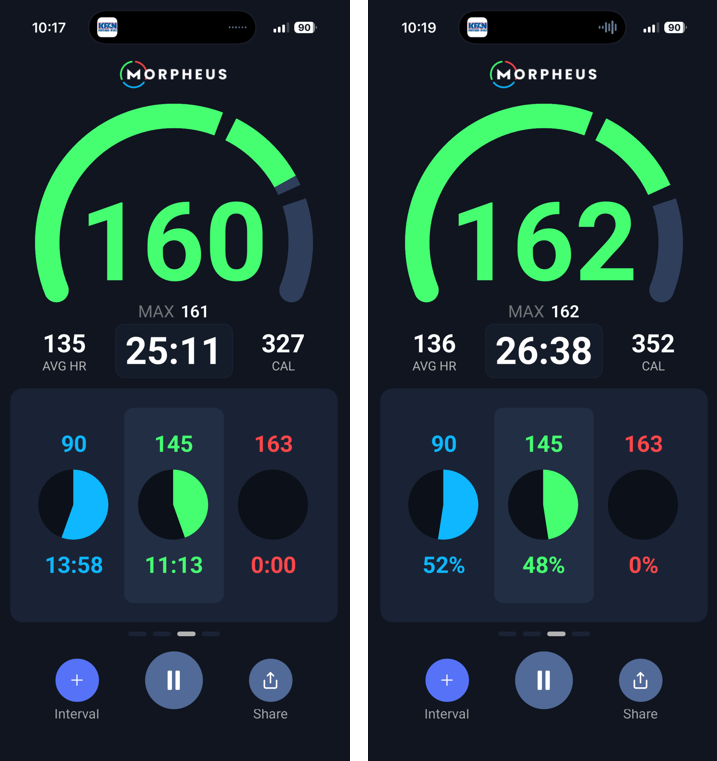
- The third view will show you the HR value that each of your zones start at as well as the total time in each zone and % of time in each zone.
- The number above each circle is the bottom HR value of each zone.
- This view will automatically alternate between time and % every few seconds.
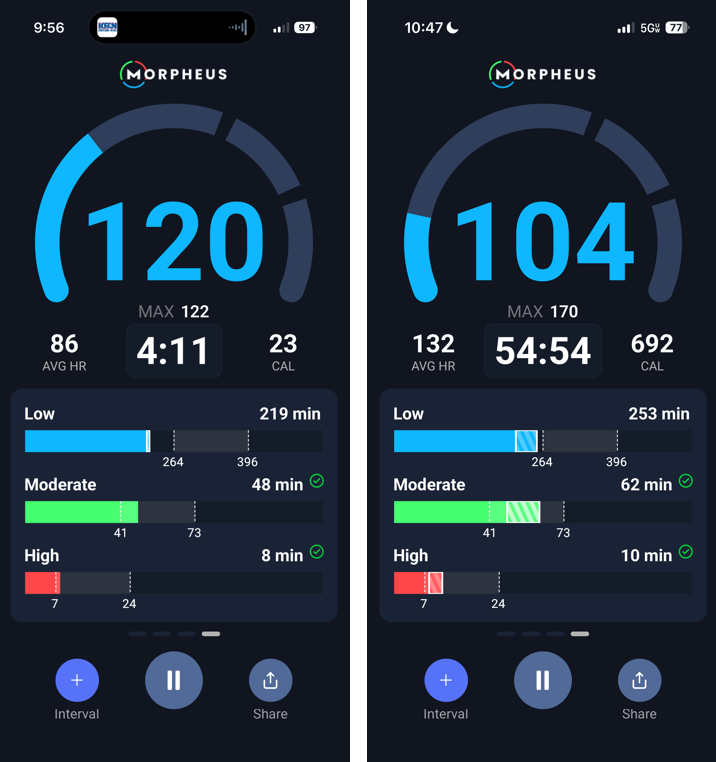
- The fourth view will show you your weekly training zone targets. You will be able to see in real time where you started the day and how you are tracking toward your targets during the current workout.
- The white number on the far right side above each bar is your total for the current week (Mon-Sun) for each zone.
- The shaded area outlined in white with diagonal lines through it represents the time that you have contributed today toward your weekly cardio targets.
iOS Only
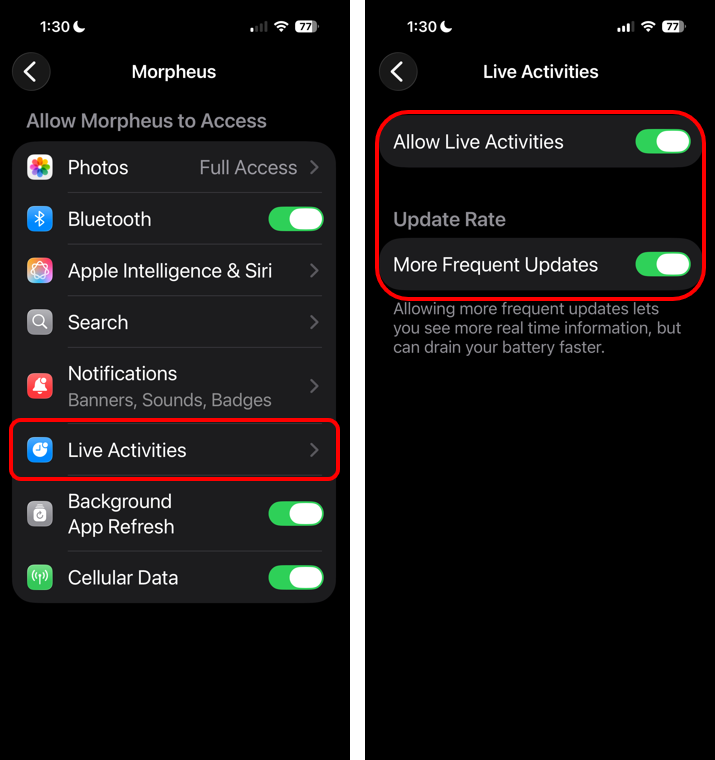
iOS users can have Live Activities turned on.
Live Activities allows Morpheus to display and continuously update your workout info outside of the app during your workout.
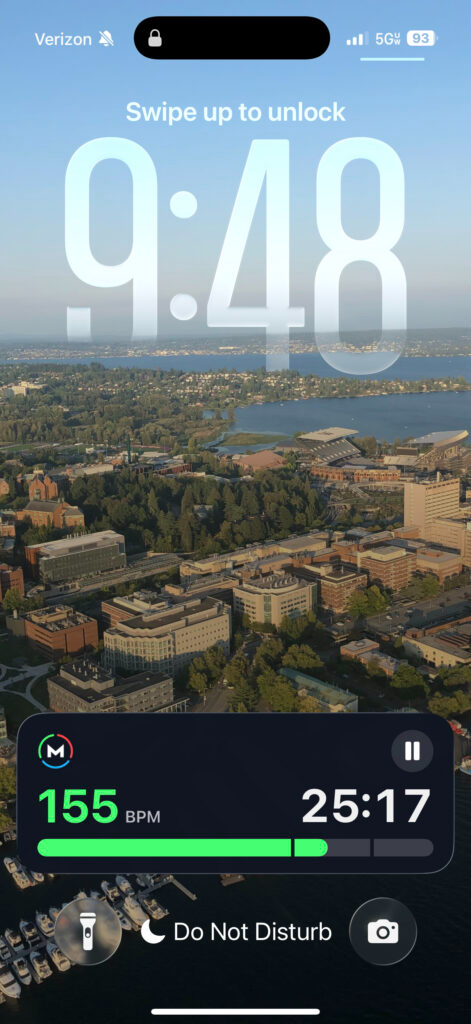
On supported iPhones, this info can appear on the Lock Screen, and for devices equipped with Dynamic Island, at the top of the screen as well (when the phone is active/not locked). This gives you quick visual access to real time workout metrics such as total duration, heart rate, and heart rate zone without needing to keep the Morpheus app open.
To ensure that you have this feature available and ready to go, on your iPhone go to Settings –> Apps –> Morpheus –> Live Activities
Device Requirements
- Live Activities: available on iPhone X or newer and running iOS 16.1 or later
- Dynamic Island: available on iPhone 14 Pro or newer
Live Activities view:
Dynamic Island view:
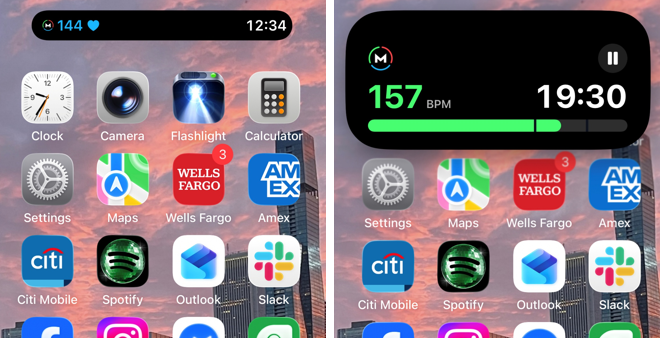
There are two different views available – compact and expanded.
- Compact – “pill” style view at the top of your phone. This shows color-coded live heart rate on the left side and total duration on the right side.
- Expanded – this can be accessed by tapping and holding the compact view. Here you can see a horizontal bar with three sections represented each of your three HR Zones during the workout.
To re-enter the Morpheus app, just tap on the Live Activities or Dynamic Island view.
Pausing or Ending a Live Workout
Tap the circular pause button on the bottom of the screen.
You will see a “Training paused” page appear. When it’s paused, the timer stops and heart rate data is not being collected.
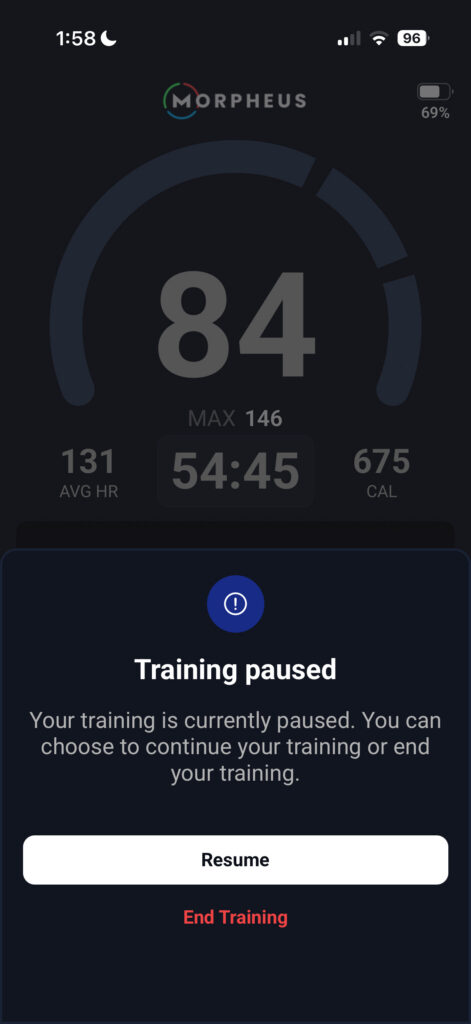
To resume your workout, tap Resume.
To end your workout, tab End Training.
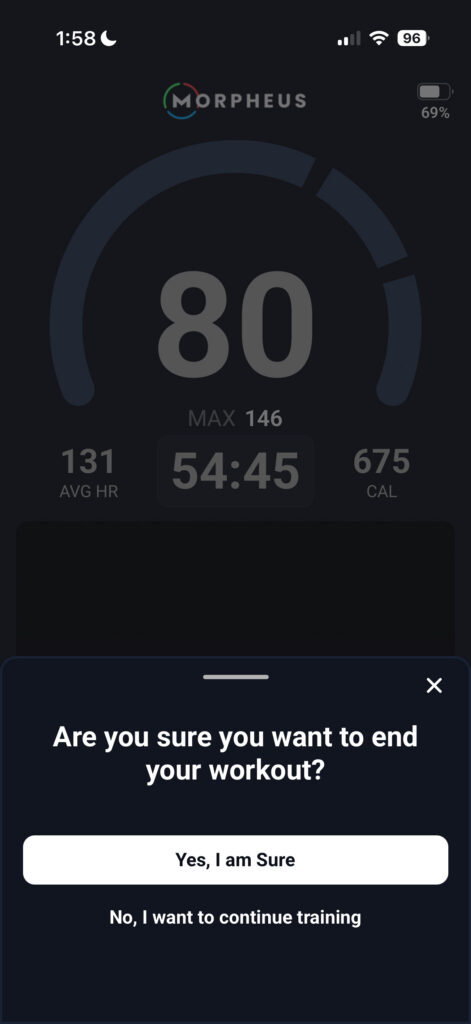
You’ll see another sheet asking if you are sure you want to end your workout.
- If you are sure you want to end it, tap Yes, I am Sure
- Otherwise you can continue your workout by tapping No, I want to continue training.
Post-Workout Questionnaire
After tapping Yes, I am Sure, you’ll complete a short questionnaire:
How hard was this workout (aka RPE):
0 = no effort, 10 = exhaustingRate your performance:
0 = worst, 10 = best (subjective only)- Tap on the “i” symbol in the upper right corner if you’d like to read more definition of each number rating for both of the slider bars.
Notes: Optional and editable later
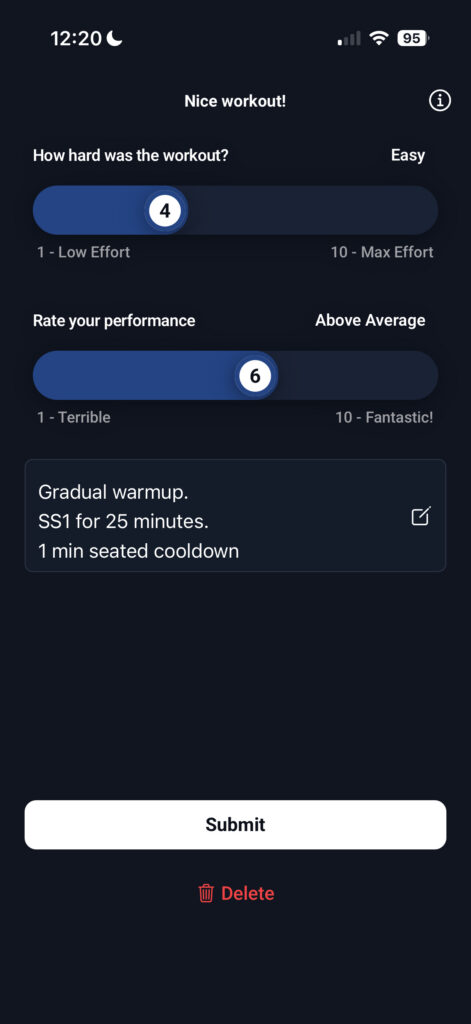
Tap Submit to save the workout.
If for some reason you do not want to save the workout, tap Delete.